

The little TikTok logo bouncing around the corner of a saved video is the single most annoying thing about saving clips from the app. It marks the file as ripped from TikTok, looks amateurish in any edit, and refuses to sit still. This is a close look at why it appears, why some tools fake their way around it badly, and how to get a genuinely clean copy.
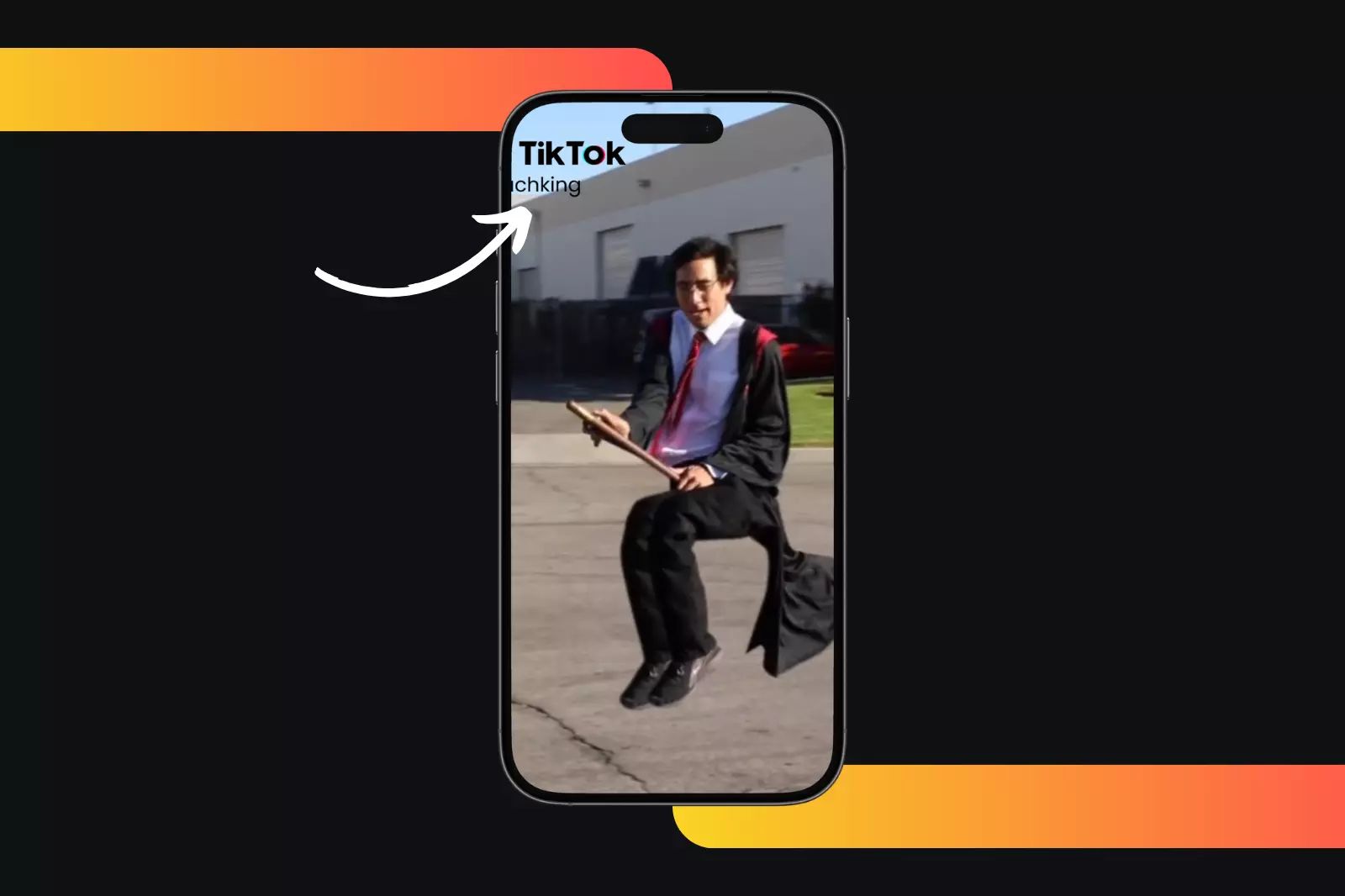
Why the watermark is even there
TikTok stamps the moving watermark on purpose. It is free advertising, a way to spread the brand every time a clip travels to another platform. When you use the app’s own save button, you get that stamped version by design. There is no setting to turn it off, because the whole point is that you cannot. That is why saving inside the app is a dead end if you want clean footage.
The wrong way: screen recording
The instinct is to screen-record the clip instead. Do not. A screen recording gives you a lower-quality copy, often with your phone’s status bar or a stray notification in the frame, and the watermark is still there because you recorded it playing. You end up with a worse file and the same logo. It solves nothing.
The lazy way: tools that erase the logo after the fact
Some downloaders advertise a clean file but cheat to get there. They grab the watermarked version, then blur or crop the corner where the logo sits. You can spot it instantly: a smeared, smudged patch where the watermark used to be, sometimes with a faint ghost of it still visible. The video is clean in name only, and the damage is permanent.
The right way: pull a clean source
A proper tool does not erase anything. It requests the original, unstamped version of the video and hands you that. No logo, no smear, no lost quality. After working through a pile of them, my default for a tiktok downloader no watermark is savett, because the file came down genuinely clean, with no blurred corner and no drop in sharpness. For comparison, snaptik manages a clean pull most of the time, and ssstik does well for a single straightforward clip, though neither handled every case as consistently.
How to check you actually got a clean file
Before you trust a clip for an edit, watch the corners. Play it full screen and look where the logo would normally sit. A clean source shows nothing there, steady and untouched. A faked one shows a soft, blurry square or a faint shadow that follows the old logo path. If you see that, the tool scrubbed instead of sourcing, and you should switch.
| Method | Watermark gone | Quality kept | Tell-tale sign |
|---|---|---|---|
| Pull a clean source (savett) | yes, truly | yes | corners stay sharp |
| snaptik | usually | mostly | occasional miss |
| Erase-after tools | sort of | no | smeared corner |
| Screen recording | no | no | status bar in frame |
Ranked by whether you end up with footage you would actually put in an edit: pulling a clean source wins outright, snaptik is a solid second, erase-after tools are a distant third, and screen recording does not belong on the list.
The limits worth knowing
Even a clean pull cannot beat the upload. If the creator posted a soft, low-resolution clip, your download matches it, watermark or not. And no tool reaches a private or region-locked video, so any site promising a clean copy of a locked clip is bluffing on both counts. Knowing those two limits up front saves you from blaming a perfectly good tool for a clip that was never going to come down sharp or unlocked in the first place.
The short answer
Skip the app’s save button and skip screen recording. Avoid anything that blurs the corner. Use a tool that pulls the original source, then check the corners to confirm. Do that and you get the clip the way it looked before TikTok stamped it, ready to use, and remember to keep only what you have the right to keep.

