

Have you ever picked up your iPhone only to find it keeps turning on and off? It may show the Apple logo, turn off, and repeat the same cycle without reaching the Home Screen. This frustrating problem is known as an iPhone boot loop, and it can prevent you from using your device normally.
The good news is that repeated restarts do not always mean your iPhone is permanently damaged. In this guide, you’ll learn why your iPhone keeps restarting and discover several practical ways to fix it.
Why Does My iPhone Keep Turning Off?
An iPhone that keeps turning off and on may be experiencing one of these issues:
- Software glitches: Temporary system errors can interrupt startup and force your iPhone to reboot.
- Failed iOS updates: An interrupted or unsuccessful update may leave the operating system unstable.
- Insufficient storage: When your iPhone runs critically low on storage, system processes may stop working correctly.
- Battery or charging issues: A worn battery, faulty cable, or unstable power supply can cause unexpected shutdowns.
- Problematic apps: Certain apps may crash repeatedly or trigger system instability.
- Hardware damage: Water exposure, physical damage, or failing internal components may also cause repeated restarts.
Identifying the likely cause can save time. Start with the simpler solutions below before moving on to more advanced repairs.
How to Fix an iPhone Boot Loop
Method 1: Force Restart Your iPhone
A force restart is a good first step because it clears temporary system glitches without deleting your personal data. It is different from a factory reset and does not require access to the Home Screen.
The steps depend on your iPhone model.
- For iPhone 8 and later, including iPhone SE (2nd generation and later), press and release the Volume Up button quickly, then do the same to the Volume Down button; finally, press and hold the Side button until the Apple logo appears.
- For iPhone 7 and 7 Plus, hold the Volume Down and Side buttons together until the Apple logo appears.
- For iPhone 6s, the original iPhone SE, and earlier compatible models, hold the Home and Side (or Top) buttons together.
Wait for your iPhone to start. If it keeps restarting, move to the next method.
Method 2: Check Your iPhone Battery and Charging Connection
Power problems can make an iPhone shut down unexpectedly, especially when the battery is aging or the charging connection is unreliable.
Connect your iPhone to a working wall charger using a compatible cable. Leave it charging for at least 30 minutes, then try a force restart again. If possible, test another cable, power adapter, and outlet.
Check the charging port for visible debris, but avoid inserting metal objects or forcing anything into it. If your iPhone becomes unusually hot, shows signs of battery swelling, or has suffered liquid damage, disconnect it and seek professional service.
Method 3: Update iOS to the Latest Version
An outdated operating system or software bug may cause repeated restarts. If your iPhone stays on long enough to access Settings, check for an update.
- Open Settings > General > Software Update.
- Wait while your iPhone checks for available updates.
- If an update is available, tap Update Now or Download and Install.
Back up your data first if possible, and make sure your iPhone has sufficient battery power and a stable Wi-Fi connection.
If your device cannot stay on long enough to complete an update, consider using a computer to update iOS through Finder or the Apple Devices app.
Method 4: Free Up iPhone Storage
Your iPhone needs available storage to manage temporary files, install updates, and run system processes. When storage becomes critically low, performance problems and unexpected restarts may follow.
If you can access Settings, go to Settings > General > iPhone Storage. Review the recommendations and remove large videos, downloaded files, or apps you no longer use.
Method 5: Remove Recently Installed Apps
Did the restart loop begin after installing a new app? A compatibility issue or app-related crash could be responsible.
If your iPhone remains usable for a short period, uninstall recently added apps one at a time. Touch and hold an app icon, tap Remove App, and select Delete App.
Restart your iPhone and check whether the problem returns. If the boot loop started after installing or updating a particular app, removing it may be enough to resolve the issue.
Method 6: Restore Your iPhone with Finder or iTunes
If the previous solutions fail, restoring your iPhone through a computer may resolve serious software problems. However, restoring the device erases its data, so try to make a backup first if possible.
- Connect your iPhone to a Mac or Windows computer.
- Open Finder on a compatible Mac, or the Apple Devices app on Windows. Use iTunes on systems where it is still supported.
- Put your iPhone into recovery mode using the button sequence for your model.
- When prompted, choose Restore and follow the on-screen instructions.
If your iPhone keeps restarting during normal startup, recovery mode can let the computer reinstall iOS. Be aware that restoring may not fix hardware-related problems, and data that has not been backed up may be lost.
Method 7: Fix iPhone Boot Loop with TunesKit iOS System Recovery
If you suspect an iOS system issue but want to explore another repair option before restoring your device, consider TunesKit iOS System Recovery.
This desktop tool for Windows and Mac is designed to help repair common iOS problems while keeping data intact, including repeated restarts, recovery mode issues, and an iPhone stuck on the Apple logo. It offers a guided repair process that can be useful when standard troubleshooting does not work.
To try it:
- Download and install TunesKit iOS System Recovery on your computer. Connect your iPhone using a USB cable and launch the program.
- Click iOS System Repair. Select Standard Repair mode to fix your device without losing data.
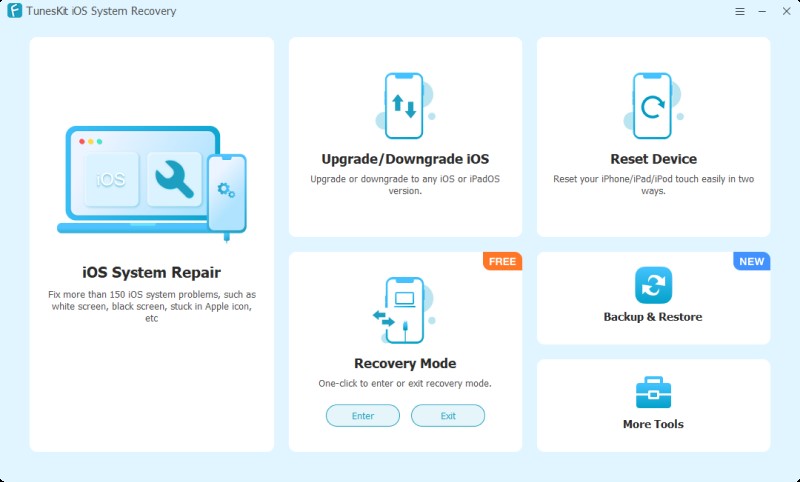
- Download the available firmware package and start the repair process as directed.
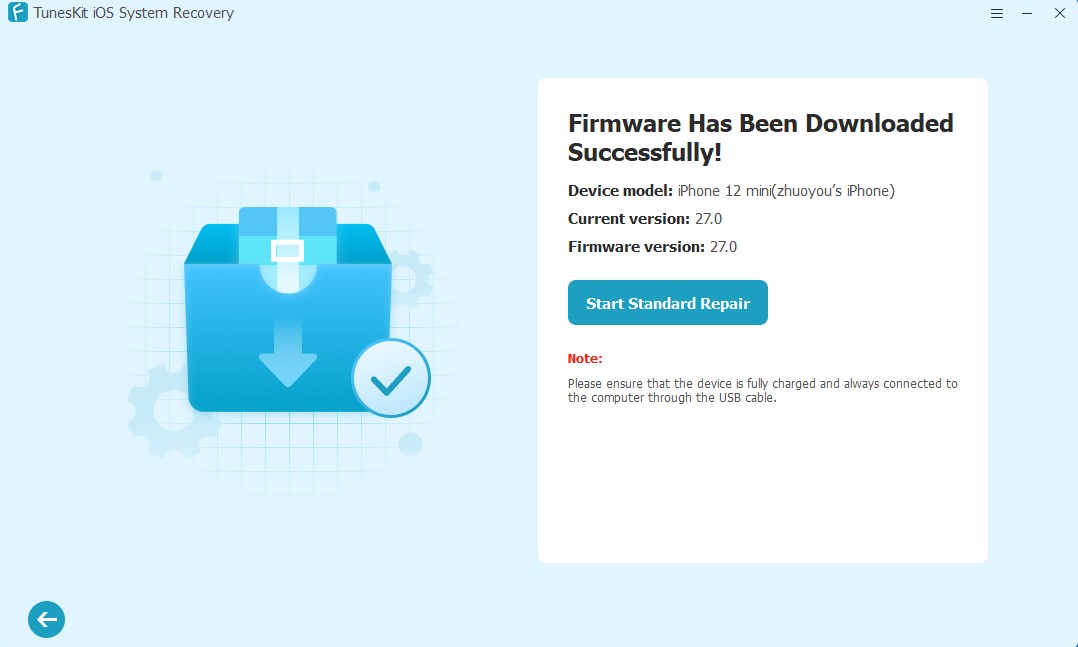
Check the software’s supported-device list and repair instructions before proceeding. Back up your iPhone whenever possible, and review the selected mode before starting.
FAQs About iPhone Keeps Turning On and Off
- Why does my iPhone keep restarting every few minutes?
Common causes include iOS bugs, insufficient storage, battery problems, and faulty hardware. If the issue began after an update or app installation, start by checking those changes.
- How do I fix an iPhone stuck in a boot loop without losing data?
Try a force restart first, then check the charging connection and update iOS if possible. You can also consider a repair tool with a data-preserving mode. Avoid restoring the device until you’ve backed up your data, if possible.
- Can an iPhone boot loop be caused by a battery problem?
Yes. An aging or damaged battery may fail to provide stable power, causing unexpected shutdowns and restarts. If charging does not help or the battery shows signs of damage, contact Apple or a qualified repair provider.
Conclusion
An iPhone boot loop can result from anything from a minor software glitch to a failing battery or internal component. Start with a force restart, check the power supply, and address potential software and storage issues before attempting a full restore.
If standard methods do not help, TunesKit iOS System Recovery offers another option for troubleshooting iOS-related startup problems. Choose the method that best fits your situation, and prioritize backing up your data whenever possible.

