

Old photographs carry moments that can’t be recreated. The problem is that most of them — whether they’re prints from the 1970s, developed snapshots from disposable cameras, or early digital files from a two-megapixel phone — simply don’t have enough resolution for a modern large print.
Trying to print them at 8×10 or larger, straight from a scan or the original file, usually produces a soft, blurry result that doesn’t do the photo justice. But with the right approach, it’s possible to upscale photo resolution in a way that makes old photographs printable at sizes you could frame and hang on a wall.
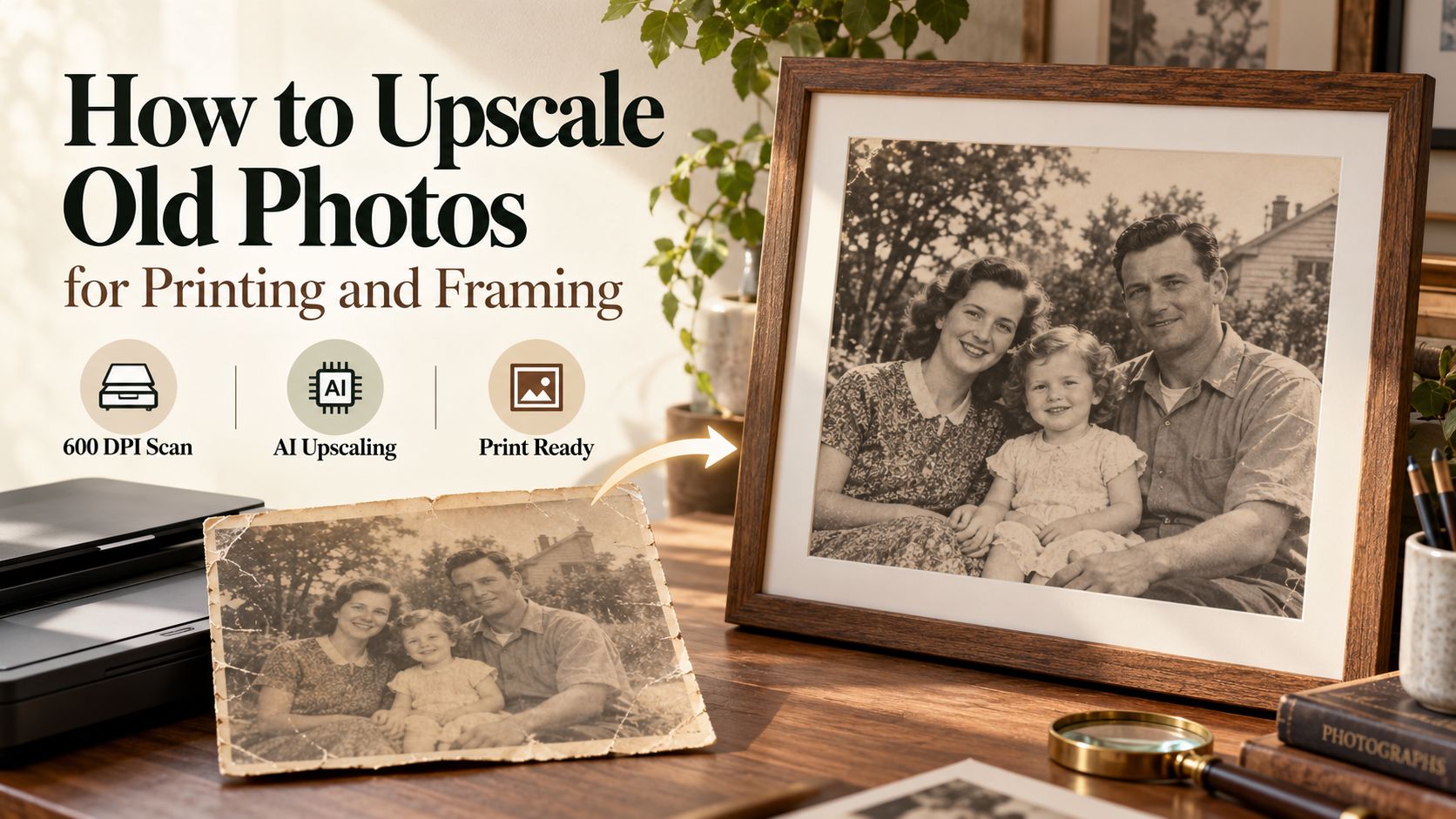
This guide walks through the full process: getting the best possible digital source, choosing a scanning resolution that doesn’t lose anything, and using AI upscaling to recover detail before you send the file to a lab.
Why Old Photos Are Harder to Enlarge
Before working on any old photo, it helps to understand what you’re actually dealing with. Old prints and film have specific characteristics that affect how much you can enlarge them and which tools work best.
Printed photographs
A physical photo print has detail that is limited by the original film or paper it was made from. When you scan it, you’re capturing that existing detail — you can’t recover information the original never had. The scan resolution you choose determines how much of that existing detail you capture.
Film negatives and slides
Negatives and slides typically contain more detail than the print made from them. If you can find and scan the original negative, you’ll usually get a higher-quality starting point than scanning the print. Film from 35mm or medium-format cameras can hold a surprising amount of detail when scanned correctly.
Early digital photos
Files from cameras made before 2010 are often 2–5 megapixels — enough for a 4×6 print, but not much more. The challenge here isn’t scanning quality; it’s that the original pixels are simply small in number. AI upscaling is especially effective here because it can work with the clean, uncompressed structure of a digital original.
Step 1: Get the Best Digital Source You Can
The quality of your upscaled result depends directly on the quality of what goes in. A few minutes spent here makes a significant difference to the final print.
Scanning printed photos
For printed photographs, scan at a minimum of 600 DPI. For small originals — wallet-sized prints, photo booth strips — go to 1200 DPI. Higher scan resolution gives the upscaling algorithm more to work with.
Use a flatbed scanner rather than a phone camera app if you have access to one. Phone scans introduce uneven lighting and lens distortion that an upscaler will faithfully reproduce. If you don’t own a scanner, many libraries, print shops, and photo labs offer scanning services.
Save the scan as a PNG or TIFF — not JPEG. JPEG compression creates artifacts that the upscaler will try to “fix” in ways that might not match the original. Start clean.
Scanning film negatives
Negatives and slides need a dedicated film scanner or a flatbed with a transparency adapter. Scan at 2400 DPI at minimum, ideally 4800 DPI for 35mm. This captures the grain structure of the film itself, which AI upscaling handles well — the model treats grain as texture rather than noise.
Using an existing digital file
If you’re working from an old digital photo rather than a scan, use the original file — never a resized or compressed copy. If you exported it from a photo app years ago at a smaller size, check whether the original still exists in the app’s library or on a backup.
Step 2: Understand How Much Enlargement You Need
Before upscaling, it’s worth working out how far you need to go. The table below shows the pixel dimensions needed for common print sizes at 300 DPI (ideal for framed prints) and 150 DPI (acceptable for prints viewed from a normal distance).
| Print size | Minimum pixels (150 DPI) | Ideal pixels (300 DPI) |
| 4″ × 6″ | 600 × 900 | 1200 × 1800 |
| 5″ × 7″ | 750 × 1050 | 1500 × 2100 |
| 8″ × 10″ | 1200 × 1500 | 2400 × 3000 |
| 11″ × 14″ | 1650 × 2100 | 3300 × 4200 |
| 16″ × 20″ | 2400 × 3000 | 4800 × 6000 |
| 20″ × 24″ | 3000 × 3600 | 6000 × 7200 |
Compare your scanned or original file’s pixel dimensions against the column for your target print size. If you’re short of the 300 DPI column, you need to upscale. If your file is already at or above those dimensions, you may be able to print without upscaling at all.
Step 3: Upscale the Photo with AI
Once you have a clean, high-resolution scan or the best available original, the next step is to upscale photo resolution using an AI tool. AI upscaling is particularly effective on old photographs because it’s trained to recognize the kind of detail that cameras and film actually capture: faces, fabric, hair, architectural edges, natural textures.
How to upscale with Phototune
Use the Phototune upscale photo tool — upload your scanned file and choose your upscale factor. 2× or 4× are the most common choices for print work. For most old photos being taken to 8×10 or 11×14, a 2× upscale is usually enough if your scan was done at 600 DPI. For larger prints or lower-resolution originals, use 4×.
The AI model processes the image in-browser and produces a result you can download. No software installation required, and the file stays in your browser session.
What to expect from the result
AI upscaling on old photographs typically recovers:
- Sharpness at edges — clothing, jewelry, architectural details
- Facial features — eyes, hair, and fine skin texture
- Text in the frame — signs, captions, inscriptions
- Background detail that blur or low resolution had obscured
What AI upscaling cannot recover is detail that was never captured in the first place. A very underexposed photo, or a print that was heavily degraded before scanning, will still have those problems after upscaling — the model improves resolution, not exposure or damage.
Step 4: Check the Result Before You Print
After upscaling, open the file and zoom in to 100% on screen before you commit to a print order. Look at a few specific areas:
- Faces — are eyes sharp and natural-looking, or does the AI show halos or over-smooth skin?
- Fine text or pattern — fabrics, labels, and backgrounds with geometric pattern reveal how well the upscaler handled edge reconstruction
- Borders and transitions — the edge where a subject meets the background is a common trouble spot
If an area looks over-processed — too smooth, or with unusual texture — try regenerating. Most AI upscalers produce slightly different outputs on successive runs, and one version may handle a specific area of the photo better than another.
If the print lab allows it, order a small proof print — a 4×6 or 5×7 — before committing to a large canvas or framed print. The relationship between what looks good on screen and what looks good in print isn’t always obvious, and a proof is cheaper than a misprinted 16×20.
Special Cases: What to Do When the Source Is Very Poor
Heavily faded photos
Color fading is a separate problem from resolution. Upscaling can’t restore color that the original film chemistry lost over decades. Before upscaling a heavily faded print, consider using a photo restoration tool or running a levels/curves adjustment in any image editor to bring back contrast. Upscale after that correction, not before.
Photos with physical damage
Scratches, creases, and water damage in the original print will appear in the scan and be preserved (or sometimes amplified) by upscaling. Spot-removal and cloning should be done before upscaling — working at smaller dimensions is faster, and the upscaler may introduce new artifacts if it tries to interpret damaged areas as intentional texture.
Very small originals
A wallet-sized print, a strip of photo booth images, or a passport photo can be scanned at 1200 DPI or higher, but the actual scene detail may still be limited. In those cases, a 4× upscale may still leave you short of the ideal resolution for a large print. Consider setting your expectations to a somewhat smaller output, or ordering from a lab that prints at 150 DPI for large-format work — the difference in perceived sharpness at normal viewing distance is smaller than the numbers suggest.
Summary
Upscaling old photos for printing comes down to a consistent process:
- Start with the highest-quality source available — the original negative if you have it, a high-DPI scan if you don’t
- Save as PNG or TIFF to avoid compressing in any quality loss
- Calculate the pixel dimensions you need for your target print size
- Use an AI upscaler to reach that resolution and recover fine detail
- Check at 100% zoom and run a proof print before ordering large
Old photographs don’t have to stay small or soft. With a good scan and AI upscaling, photos that have spent decades in an album or a shoebox can become prints worth framing.

