

Quick Answer: Can You Factory Reset a Locked Android Phone?
Yes, you can factory reset a locked Android phone without entering its screen PIN, password, or pattern. However, a factory reset erases data stored on the device, including apps, photos, and settings.
There are three practical ways to reset your locked Android phone:
| Method | Best For | Requirements |
| Google Find Hub | Phones connected to the internet | Access to the linked Google account |
| DroidKit Screen Unlocker | Users who prefer guided instructions | Computer, USB cable, supported device |
| Recovery Mode | Offline phones or manual resets | Working hardware buttons |
Before you begin: Make sure you know the Google account previously linked to your phone. Android may require account verification after the reset.
Method 1: Reset a Locked Android Phone with Google Find Hub
Google Find Hub (formerly Find My Device) lets you remotely erase your Android phone without unlocking its screen.
This method works when your device is powered on, connected to the internet, signed in to your Google account, and has Find Hub enabled.
Steps to reset your phone:
- On another device, visit Google Find Hub.
- Sign in with the Google account associated with your locked phone.
- Select your Android device from the list.
- Open the device settings and choose Factory reset or the available erase option.
- Follow the prompts to confirm the reset.
Once the command is carried out, your phone’s local data will be erased, including its screen lock.
If your phone is offline, the remote reset cannot execute until it reconnects. For a guided alternative, consider the next method.
Method 2: Reset a Locked Android Phone Using DroidKit
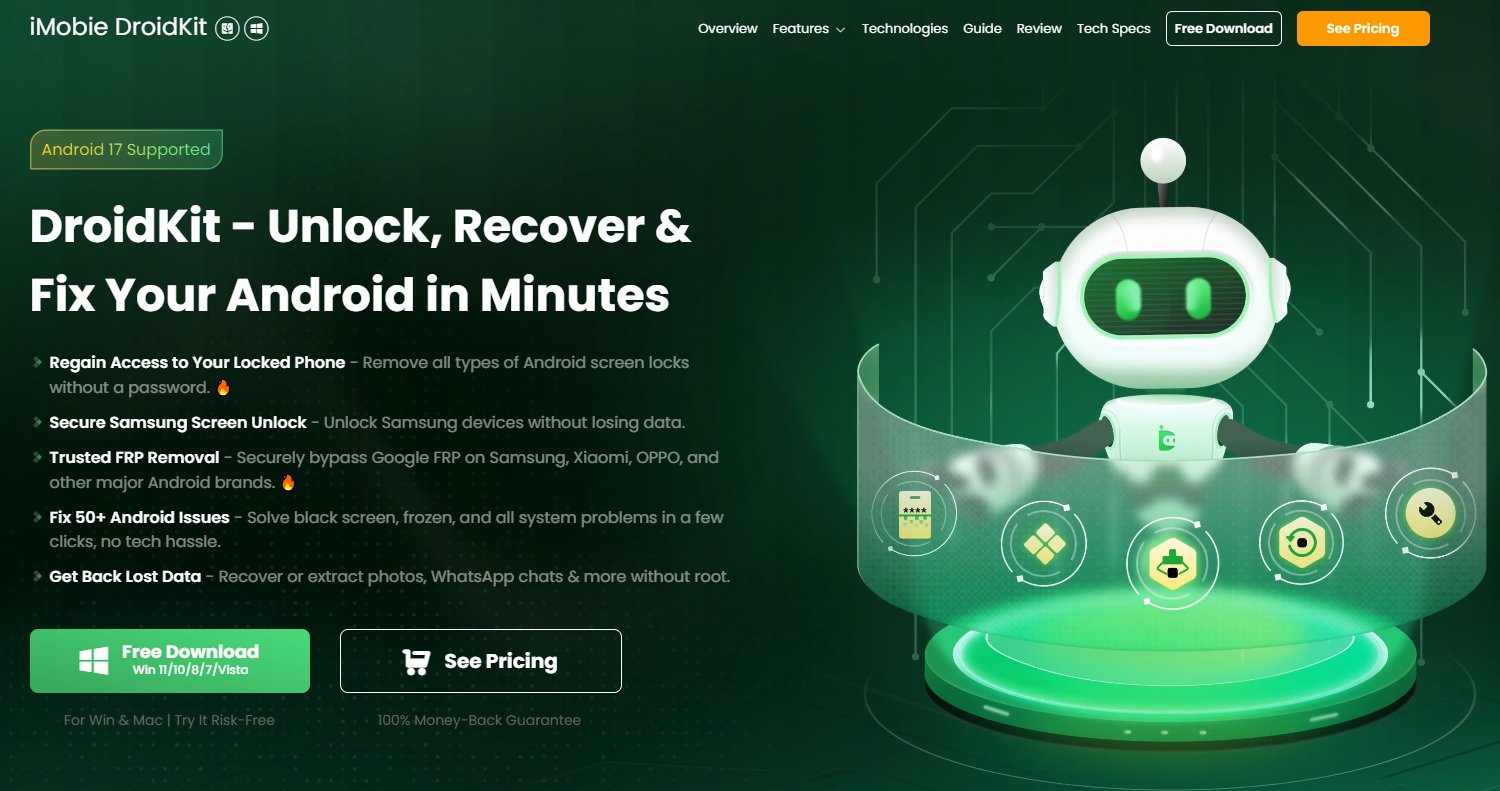
If you cannot use Google Find Hub or find Recovery Mode instructions confusing, DroidKit Screen Unlocker offers a guided way to remove the screen lock on supported Android phones.
DroidKit provides on-screen instructions for your device instead of requiring you to figure out every step independently. It supports different types of screen locks, including PINs, patterns, and passwords.
How to reset your locked Android phone with DroidKit:
- Download and install DroidKit on your PC or Mac.
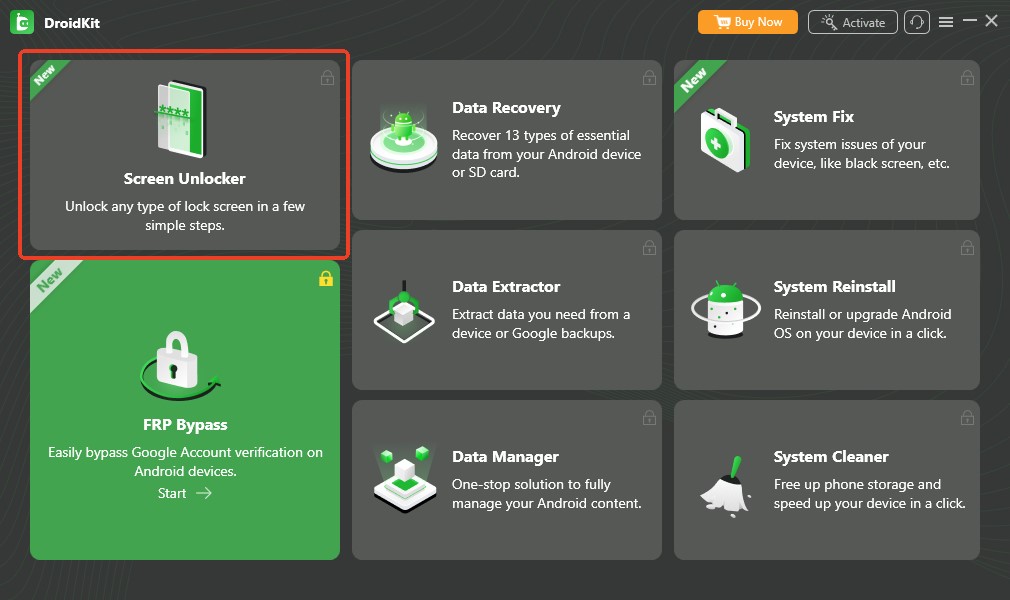
- Launch DroidKit and select Screen Unlocker.
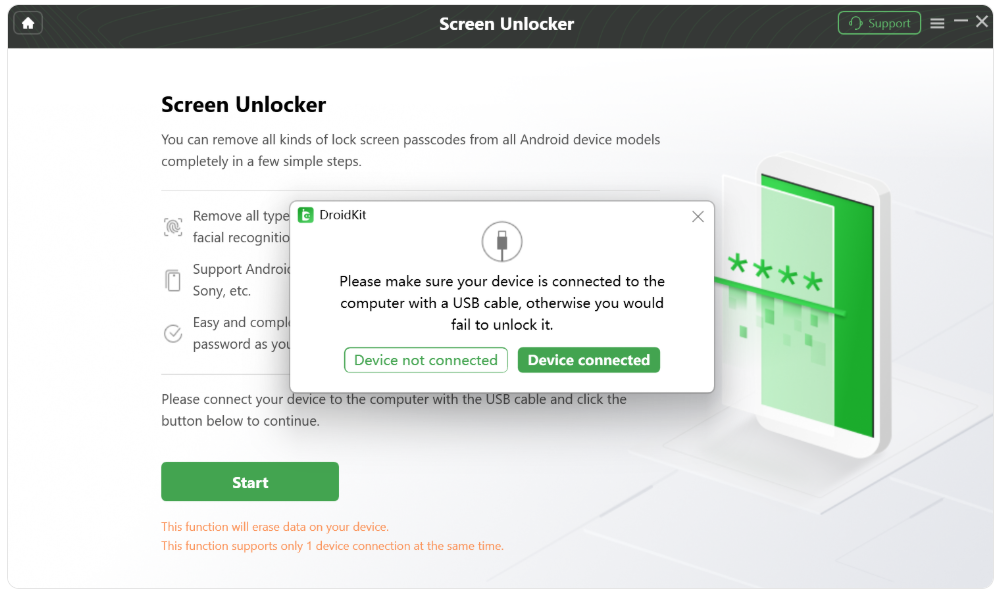
- Connect your locked Android phone using a USB cable.
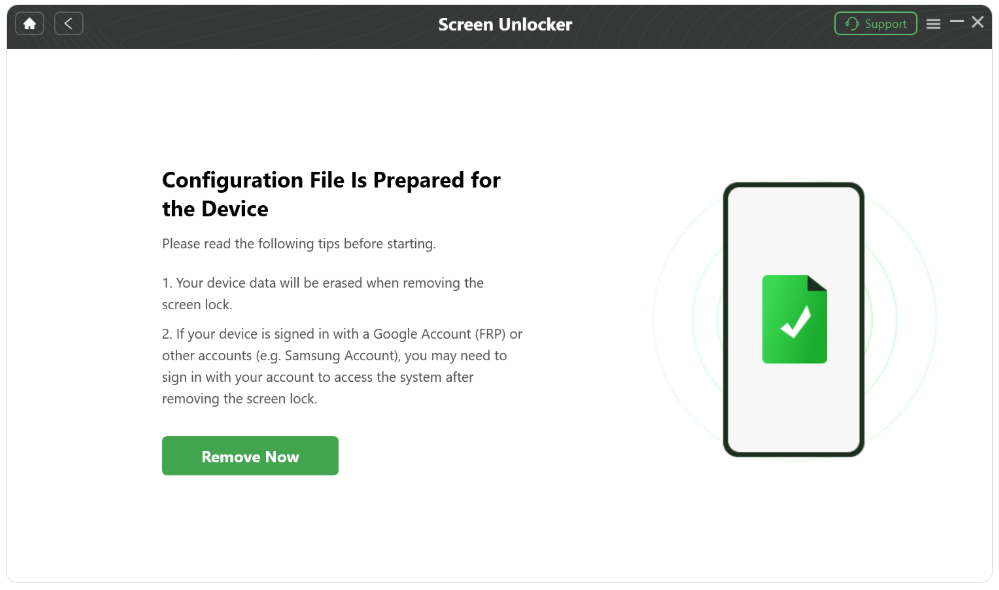
- Follow the prompts and select Remove Now when available.
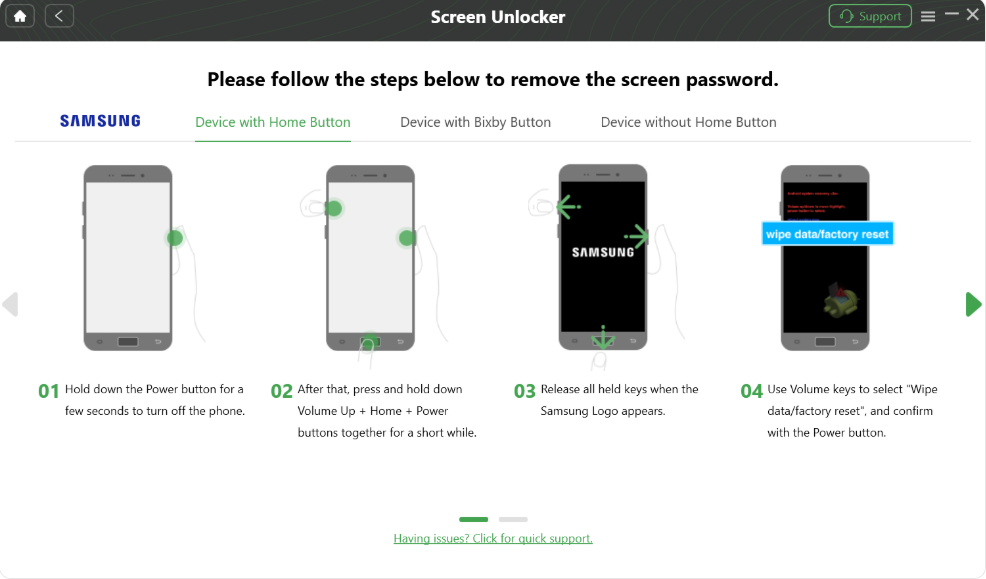
- Complete the device-specific instructions shown in DroidKit.
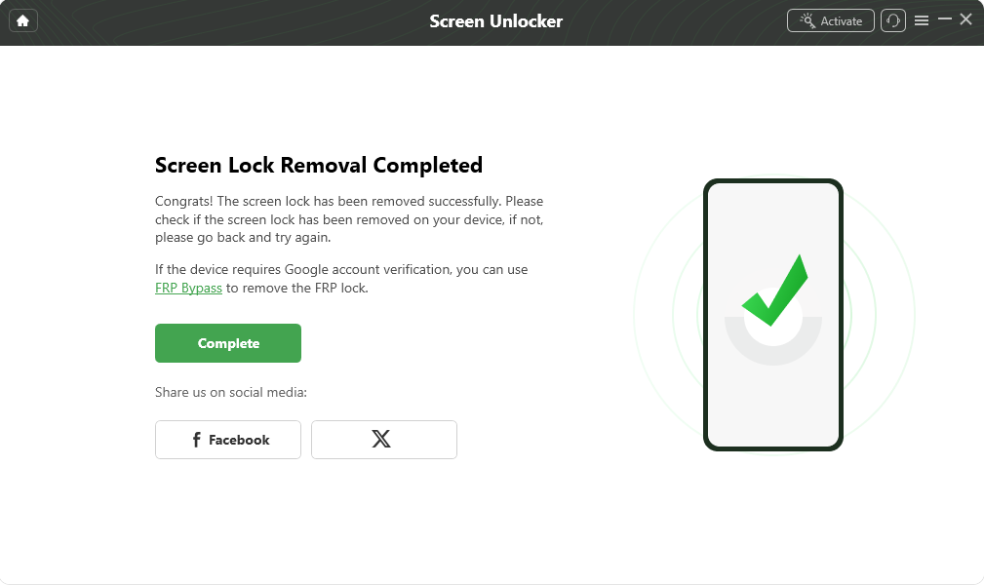
- Wait for the process to finish, then set up your phone again.
Important: Removing the screen lock with DroidKit erases device data in most cases. Some older Samsung models may support exceptions. Check device compatibility before proceeding.
For users who prefer a visual, step-by-step process, DroidKit can be a convenient alternative to navigating Recovery Mode manually.
Method 3: Hard Reset a Locked Android Phone Using Recovery Mode
Recovery Mode allows you to factory reset an Android phone using its physical buttons, even when you cannot access Settings.
The exact button combination depends on your phone’s manufacturer and model.
Steps to factory reset through Recovery Mode:
- Turn off your Android phone if possible.
- Enter Recovery Mode using the button combination for your device.
- Use the Volume buttons to highlight Wipe data/factory reset.
- Press the Power button to select it.
- Confirm Factory data reset.
- When the reset finishes, select Reboot system now.
Your phone will restart without its previous screen lock, although Google account verification may still be required.
What If Your Phone Requires a PIN to Power Off?
Some Android phones require authentication before shutting down normally.
You may be able to force-restart the device using its hardware buttons, but the correct combination varies by model.
For example:
- Samsung Galaxy: Some models support a forced restart using Power/Side and Volume Down. Entering Recovery Mode may require a different combination and a USB connection.
- Google Pixel: Many models use Power and Volume Down to enter Fastboot Mode, where you can select Recovery Mode.
- Other Android phones: Button combinations and timing depend on the manufacturer.
A forced restart does not itself factory reset the phone. Follow your manufacturer’s instructions to enter Recovery Mode safely.
If the buttons are unresponsive or you cannot access Recovery Mode, a guided desktop tool may help on supported devices.
What Happens After Resetting a Locked Android Phone?
After a factory reset, your phone starts the initial Android setup process.
You may encounter Factory Reset Protection (FRP), a security feature designed to prevent unauthorized use of a reset device.
Depending on the device and reset method, Android may ask for a previously synced Google account or other ownership credentials.
If you remember your Google account, sign in and continue setup.
If you forgot the password, use Google Account Recovery before attempting setup again. Recently changed passwords may also require a waiting period.
Remember: Resetting your phone removes its local screen lock, but it does not guarantee removal of Google account verification.
Frequently Asked Questions
Can I factory reset an Android phone without a password?
Yes. You can use Google Find Hub, Recovery Mode, or a compatible screen-unlocking tool without entering the current screen password. A factory reset erases locally stored data, and ownership verification may still be required.
How do I reset my Android phone if it won’t turn off?
Check the forced-restart instructions for your model, then use the appropriate button combination to enter Recovery Mode. There is no universal shortcut for every Android phone.
Will resetting my locked Android phone delete everything?
A factory reset removes locally stored user data, including apps, settings, and photos saved only on the device. Content previously backed up to Google or another cloud service may be restored after setup.
Can I reset a locked Android phone without losing data?
Generally, no. Modern Android devices use security protections that prevent ordinary screen-lock removal without erasing local data. Limited exceptions may exist on certain older devices.
Can I reset a locked Samsung phone?
Yes. Samsung phones can be reset through supported Recovery Mode procedures or other compatible methods.
Final Thoughts
If you’re locked out of your Android phone, start with Google Find Hub when your phone is online and your account is accessible. Recovery Mode provides a manual alternative, while DroidKit offers a guided workflow for supported devices.
Whichever method you choose, check your backups and Google account credentials before resetting. This helps you avoid unexpected data loss and account verification problems afterward.

