

Drecov Guide to Lost Webtoon Art
For a webtoon artist, the published image is only the visible end of the job. Behind one episode sit sketches, layered source files, lettering passes, color versions, and exported panels. Losing that working folder can cost far more time than losing a finished JPEG. If a Windows PC, USB drive, or memory card no longer shows your original art, pause the workflow before creating replacement files on the same device.
This guide is for creators recovering their own work or files they are authorized to use. It does not cover copying or extracting comics from a reading platform. Start with your drawing app, cloud history, and existing exports. Use a storage scan only for files that genuinely existed on your local device.
Work Out Which Version Is Missing
An artist may say an episode is gone while still having part of it. The source project may be missing, but flattened PNG panels are safe in an export folder. Or the drawing file may survive while dialogue, fonts, and reference notes do not. List the missing pieces before you scan anything.
Check the file type and last known location. Common source files include `.psd`, `.clip`, and application-specific project formats; exports may be `.png`, `.jpg`, or `.pdf`. Some apps save autosave or recovery copies under a separate name. A remembered chapter number, scene title, or date can be more useful than the exact filename.
Also distinguish the latest working revision from the published output. A platform-hosted page may show the finished chapter, but it does not automatically provide the layered file, editable text, or color adjustments you used to create it. Recovering an export is valuable, yet it may not replace the original project.
Stop Writing to the Affected Device
If the missing folder was on a USB drive, SD card, or external disk, stop using that device. Do not export a new chapter onto it, rename folders to see whether they reappear, or accept a prompt to format it. New writes can replace deleted file data. Store fresh artwork on another healthy drive while you investigate.
If the loss is on the PC’s system drive, avoid large downloads, application installs, and cleanup utilities. Even ordinary background activity may reuse free space. This is particularly important for SSDs, where TRIM can make deleted data unrecoverable. Fast action helps, but no software can guarantee a file will still be available.
When the device clicks, disconnects repeatedly, or vanishes from Windows, stop troubleshooting with consumer software. Those symptoms can indicate physical or controller failure. A professional recovery service is more appropriate than repeated scans.
Check the Creative Workflow First
Look Inside the Drawing App
Open the app’s recent-file list, autosave or recovery location, and version history if it offers one. Search by chapter name and date. Some applications save a temporary recovery file after a crash, while others keep a backup next to the source document. Read the app’s own guidance before changing or deleting temporary files.
If the project opens but looks incomplete, inspect the layer panel and embedded references before overwriting it. Save a separate copy to a safe drive. An unexpected blank canvas may be the wrong version, a hidden layer group, or a missing linked asset rather than a destroyed project.
Search Cloud Storage and Shared Folders
OneDrive, Google Drive, Dropbox, and team workspaces may hold copies, deleted items, or earlier versions. Check the correct account and project folder. A sync icon does not prove that an online-only file was fully stored on the PC; local recovery software cannot retrieve a cloud-only file from sectors that never contained it.
If collaborators handled the lettering or coloring, ask whether they have a legitimate working copy. Use a new filename when bringing it back so the recovered version does not overwrite a newer one. For a shared project, note which person owns the authoritative version before resuming sync.
Check Exports, Messages, and the Recycle Bin
Search the Windows Recycle Bin and all export locations. Creators often keep flattened panels in a separate `final`, `upload`, or `preview` folder. Email drafts and messages to editors may hold earlier exports or notes. These will not restore editability, but they can save a deadline while you work on recovering the source.
When a Local Recovery Scan Is Appropriate
If the missing art once lived on a readable Windows drive and no backup or autosave has it, a read-only scan can search for remaining local data. PandaOffice Drecov supports Windows PCs, hard drives, USB drives, SD cards, and memory cards. It can look for images, documents, archives, videos, and other common file types. For an artist, its preview feature can help distinguish the correct exported panel from dozens of thumbnails or old revisions.
Quick Scan is the first choice after a recent deletion. Deep Scan searches more thoroughly if the first pass misses the folder or its directory information is damaged. Drecov can pause and resume a longer scan. Its read-only scan is meant to inspect the source without intentionally changing it; however, the recovered files must be saved to a different healthy location.
An important limitation remains: finding a project file does not prove that every layer or linked asset is intact. Preview and reopen the result in its original drawing application. Do not assume Drecov can rebuild damaged art software formats or repair failing hardware.
Recover Original Art Step by Step
1. Identify the Source Device
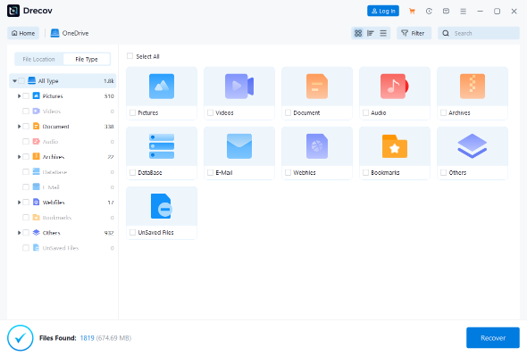
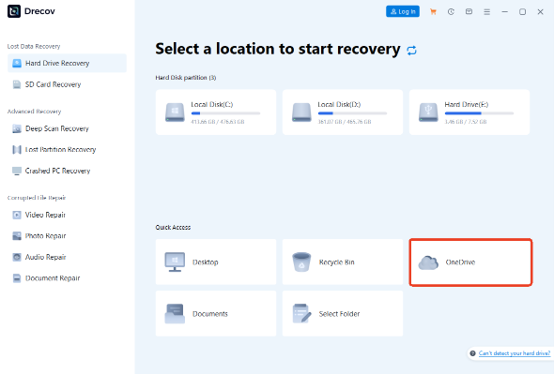
Decide where the last complete local version existed. Was it in Documents on the PC, an external project drive, or an SD card used to transfer scans and reference photos? If you are uncertain, check app recent-file paths and cloud sync settings. Scan the actual source rather than every connected drive.
2. Prepare a Safe Destination
Connect a separate healthy disk with enough room for the project and its exports. Install Drecov away from the affected partition. If the source is an external drive or card, install on the PC, not on that device. Make a new folder for recovered results so you can compare versions without overwriting anything.
3. Run Quick Scan, Then Deep Scan if Needed
Select the source in Drecov and start Quick Scan. Search for chapter numbers, filenames, and relevant extensions. If the expected material does not appear, use Deep Scan. For a memory card recovery case, keep the card in a reliable reader and avoid moving or editing files while the scan runs.
4. Preview and Recover the Whole Set
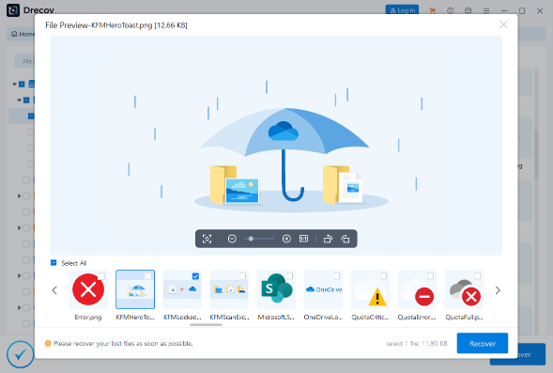
Preview supported images and documents. Recover not only the apparent master file but also associated references, exported panels, fonts or lettering notes that were stored beside it. Save the results to the separate healthy drive. If files have lost their names, group them by format, dimensions, and creation period, then compare the artwork visually.
5. Verify in the Original Applications
Open source files in the program that created them. Check layers, masks, text, linked images, page order, and color profile. Open the flattened exports as well, zoom in on detailed panels, and confirm every page is present. Keep the recovered set unchanged until a verified working copy is safely backed up.
A Recovery Plan That Respects the Reader
The recovery process should not assume that a reading website stores a creator’s working files or that a recovery program can pull content from an online catalog. The source must be a device you own or are authorized to work on.
If you only lost a bookmark, reading progress, or an account setting on a website, check that site’s account and browser support. Drecov works with local storage data, not a platform’s private servers. That distinction saves time and keeps expectations realistic.
Protect the Next Chapter
Use a project folder with clear episode and revision names. At the end of each session, copy the source file and its linked assets to a second location. Keep one copy off the working device, preferably with version history. Test the backup by opening a project occasionally; a folder full of files is not enough if the app cannot read them.
Separate source projects from flattened publishing exports. A simple structure such as `Episode 12 / Source`, `Assets`, and `Exports` makes it easier to find a complete set after a crash. Before deleting an older revision, confirm the new one opens and that its cloud sync has finished. Retire USB drives or cards that disconnect unexpectedly.
Final Thoughts
Losing an original webtoon project calls for a calm inventory, not a rush to recreate it. Check autosaves, cloud versions, collaborators, exports, and the Recycle Bin first. If a local source file was deleted from stable storage, Drecov can scan without writing to that source. Recover to a different drive, test the result in the original application, and keep a separate backup before moving on to the next episode.

