

Uninstalling software on Windows should be straightforward—but often, it isn’t. Some programs leave behind residual files, registry entries, or even run processes that block standard removal. Over time, these leftovers not only consume valuable disk space but can also slow down your PC or pose security risks.

That’s where IObit Uninstaller comes in. This is powerful uninstaller tool developed by IObit goes beyond the default Windows uninstallation process to ensure complete cleanup. Whether you want to uninstall apps in Windows 11, remove stubborn software, or clean out old browser extensions, IObit Uninstaller 15 Free provides an efficient, user-friendly solution.
Why Standard Uninstallation Often Fails?
The built-in “Add or Remove Programs” tool in Windows is functional but limited. It typically removes the core files of a program but leaves behind:
- Registry entries
- Configuration files
- Temp data folders
- Startup services or scheduled tasks
These leftovers can cause issues when reinstalling software or even slow down system performance. Some programs, especially adware or toolbars, actively resist removal.
Key Features of IObit Uninstaller 15 Free
IObit Uninstaller 15 Free was designed by IObit, to solve these problems by providing a more thorough removal process. Its main features include:
- Comprehensive Uninstallation: Removes all associated files, folders, and registry entries, ensuring the program is fully erased.
- Batch Uninstall: Select multiple programs at once and remove them in a single process—perfect for decluttering after years of app buildup.
- Force Uninstall for Stubborn Programs: Ideal for software that refuses to be removed through normal methods, ensuring complete deletion.
- Browser Extension Removal: Quickly identify and remove toolbars or add-ons from browsers like Chrome, Firefox, Edge, and others.
- Software Health Monitoring: Continuously checks for outdated, problematic, or potentially dangerous software and helps fix them.
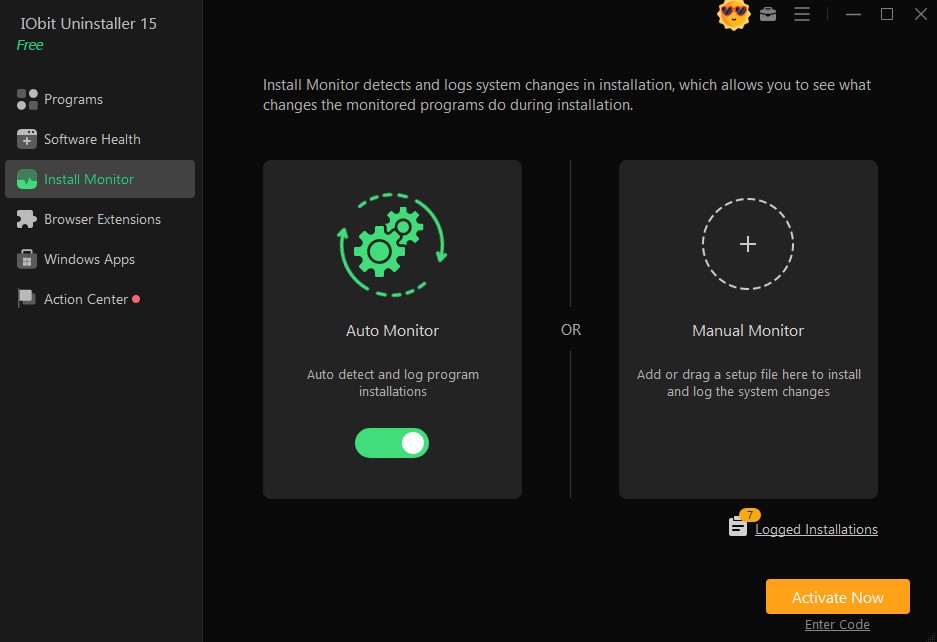
- Install Monitor: Tracks changes made during new software installations so you can roll them back later if needed.
Step-by-Step Guide: How to Remove Stubborn Programs
Here’s how to use IObit Uninstaller 15 Free to fully uninstall any program—especially those that won’t budge with the standard Windows method.
Step 1: Download and Install IObit Uninstaller 15 Free
- Go to the official IObit Uninstaller
- Click Free Download and save the installer to your computer.
- Run the installer and follow the setup instructions.
Step 2: Launch the Program
- Once installed, open IObit Uninstaller 15
- The main dashboard will display all installed programs, Windows Store apps, and browser plugins.
Step 3: Perform a Standard Uninstall
- Go to the Programs
- Find the app you want to remove (use the search bar if needed).
- Click Uninstall and confirm your action.
- After the standard uninstall, IObit will scan for leftovers—click Delete to remove them.
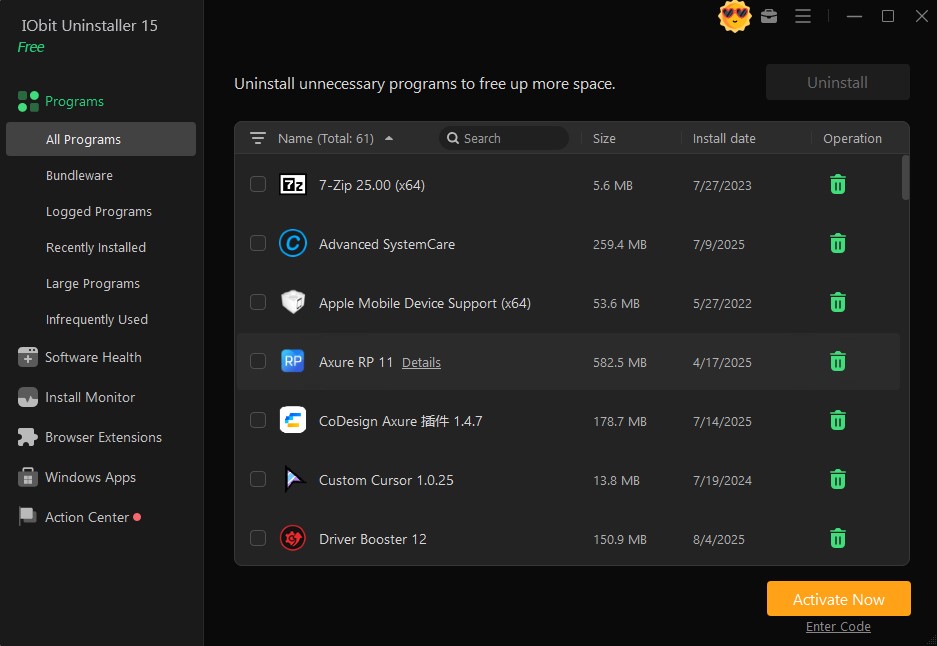
Step 4: Batch Uninstall Multiple Apps
- Check the boxes next to the apps you want to remove.
- Click Uninstall to delete them in one go.
- Confirm the removal and clean up leftovers afterward.

Step 5: Force Uninstall Stubborn Programs
Some programs may not appear in the regular list or fail to uninstall normally.
- Navigate to Stubborn Program Remover from the left menu.
- Locate the uncooperative software.
- Click Force Uninstall to delete all associated files and registry entries.
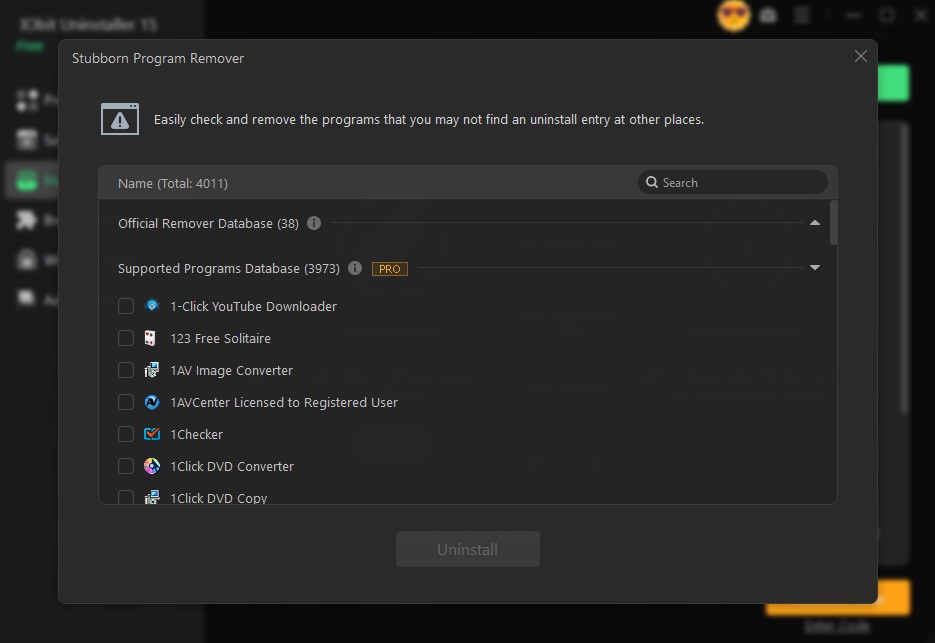
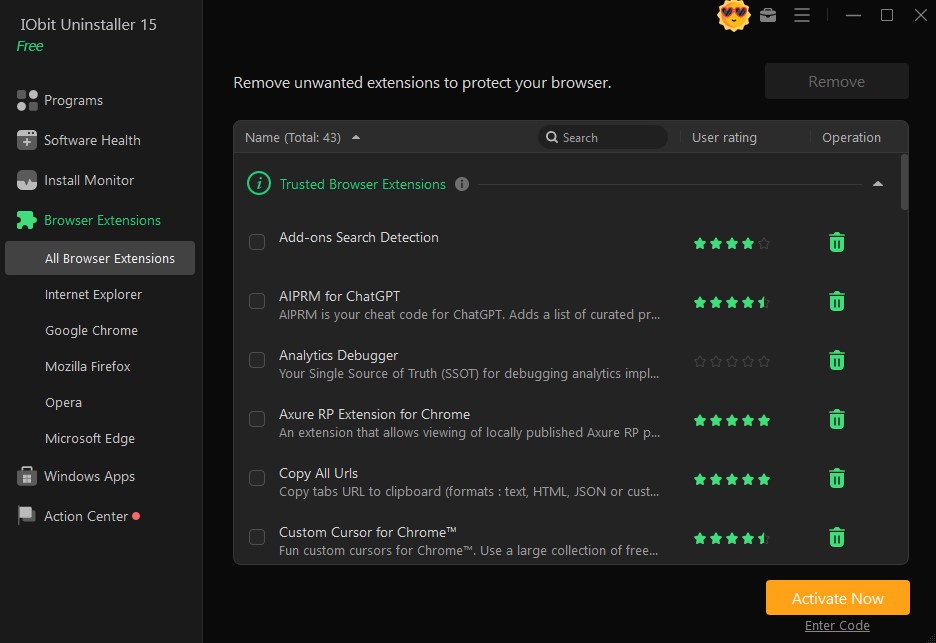
Step 6: Remove Unwanted Browser Extensions
- Click the Browser Extensions
- Select the browser you want to clean.
- Review installed extensions and click Remove for unwanted items.
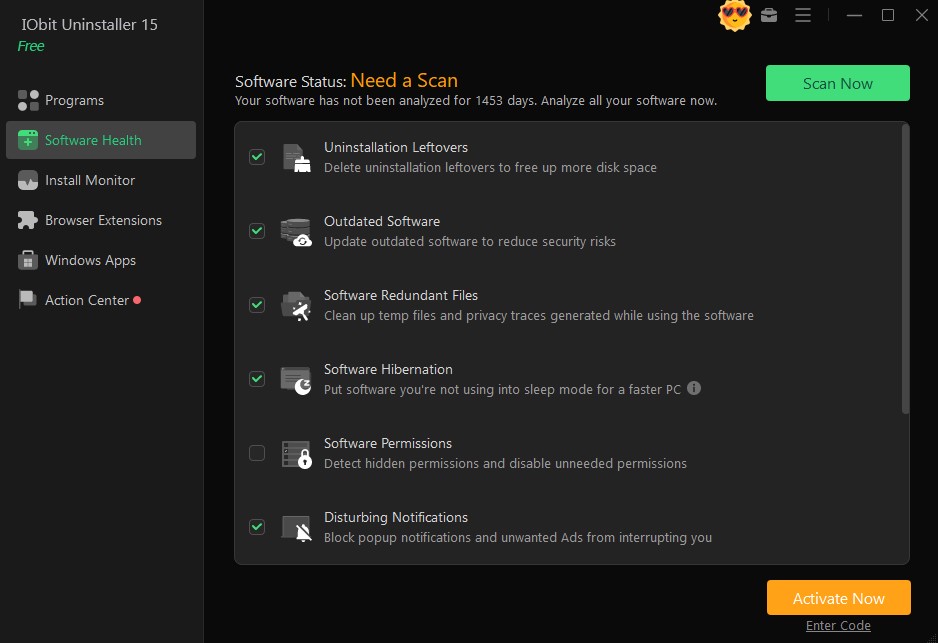
Step 7: Use Software Health for Ongoing Maintenance
- Open the Software Health
- Click Scan to identify outdated, leftover, or malicious software.
- Click Fix to resolve detected issues.
Step 8: Monitor Future Installations
Enable Install Monitor to track changes during software installations so you can fully reverse them later.
Benefits of Using IObit Uninstaller 15 Free
Integrating IObit Uninstaller into your routine PC maintenance offers several important benefits:
- Enhanced System Performance: By removing unnecessary programs, bloatware, and leftover files, your system will start faster and run more smoothly.
- Increased Storage Space: Deep cleaning removes hidden files, freeing up valuable disk space for important apps and documents.

- Improved Security: Eliminating outdated or suspicious software reduces vulnerabilities and keeps your system safer.
- Simplified Software Management: The intuitive interface makes uninstalling, updating, and monitoring software easy—even for non-technical users.
Pro Tips for Getting the Best Results
To maximize the effectiveness of IObit Uninstaller 15 Free, it’s worth adopting a few smart maintenance habits. These practices not only keep your PC running at peak performance but also help you avoid future software-related headaches.
- Run Software Health scans weekly: Detect outdated apps, leftover files, and potential threats before they cause performance issues.
- Batch uninstall old programs: Free up disk space and keep your system clutter-free by removing unused software every few months.
- Enable Install Monitor: Track changes during software installations for a complete rollback if unwanted modifications occur.
- Regularly check browser extensions: Remove suspicious or unnecessary add-ons to maintain browsing speed and security.
- Keep IObit updated: Always use the latest version to benefit from improved features, bug fixes, and enhanced program removal capabilities.
Final Thoughts
The standard Windows uninstall process often leaves traces behind, especially with stubborn software. IObit Uninstaller 15 Free is a must-have tool if you want a cleaner, faster, and more secure PC. With features like Force Uninstall, Batch Removal, and Software Health, it offers everything you need to keep your system in top condition.
Whether you’re trying to uninstall apps in Windows 11 or simply declutter your PC, IObit Uninstaller gets the job done—completely and efficiently.
FAQs
- Can IObit Uninstaller 15 Free remove programs that don’t appear in the Windows uninstall list?
Yes. Using the Force Uninstall or Stubborn Program Remover feature, IObit Uninstaller can detect and remove programs that are hidden or fail to show up in the standard Windows uninstall menu. - Will IObit Uninstaller delete my personal files?
No. IObit Uninstaller only targets program-related files, folders, and registry entries. Your personal documents, images, and other data remain untouched. - Is IObit Uninstaller safe to use on Windows 11?
Absolutely. IObit Uninstaller is designed to work seamlessly with Windows 11 (and newer versions), ensuring complete and safe software removal without damaging your operating system.

