

Repair AutoCAD: Recover and Restore Your DWG Files Easily with 3 Ways
We all rely on AutoCAD DWG files to design structures, map out engineering concepts, and coordinate significant architectural projects. When these files refuse to open or display errors, a single corrupted drawing can bring the entire workflow to a halt. Such issues threaten hours of hard work and disrupt deadlines and project continuity.
This guide walks you through practical methods to repair AutoCAD files so you can safely open and continue editing your designs. As a bonus, we’ll also introduce a dependable DWG repair tool that helps you recover your files without losing important project details.
Part 1. Why AutoCAD Files Get Corrupted and How It Happens
When a DWG file gets corrupted, DWG file repair starts with finding what caused the issue so you can fix it the right way. We’ll explain the most typical causes of DWG file failure and the effects each of the corruption types can have on your AutoCAD drawings.
- Interrupted Save & Sudden Shutdown: An incomplete save caused by power loss or network drop leaves the DWG only partly written and damaged. This often results in “drawing file not valid” errors or missing data when the file loads.
- System Instability & Storage Faults: Crashed operating systems or failing drives corrupt the data blocks that store the DWG. This leads to random crashes or empty drawings when you access the file again.
- Unsafe Add‑Ons & Incompatible Tools: Misbehaving plug‑ins or third‑party CAD tools write unsupported or malformed objects into the DWG. This introduces hidden errors that cause slow performance, frequent error messages, or total file failure later.
- Contaminated Xrefs & Heavy Objects: Attached Xrefs bring in excessive RegApps or complex linetypes that overload the drawing database. This causes bloated file size, sluggish commands, and in severe cases, complete DWG corruption across linked files.
- Version & Transfer Mismatches: Repeatedly opening or copying a DWG file across different CAD versions can alter important data. This creates gradual data loss, broken elements, and unexpected behavior during DWG file editing.
Part 2. Repair AutoCAD Like a Pro: Fast Techniques to Restore DWG Files
Now that you know the common causes and how DWG files get corrupted, it’s time to explore effective methods for AutoCAD file repair to restore your drawings.
1. Use AutoCAD’s Built-in Recovery Tools
The built-in recovery tools in AutoCAD provide a quick first line of defense for corrupted drawings, directly inside the software. They help detect and fix common DWG issues, so teams recover work without extra plugins or services. Both individual designers and larger CAD teams use these tools to keep projects moving with minimal disruption.
The most used is the Recover feature that opens a damaged DWG and attempts to repair it so the file becomes usable again. Likewise, AUDIT checks the drawing database for errors and fixes issues that could cause crashes or data loss. PURGE removes unused or corrupt objects from the file to reduce size and eliminate elements that might trigger corruption later.
Recover
Now, follow the instructions below to repair AutoCAD file that is corrupted with the built-in Recover feature.
Instructions. Once you enter the main interface, press the “AutoCAD” icon in the top left corner and hover your mouse pointer over the “Recover” option on the drop-down menu. Next, hit the “Recover” option again in the extended menu to import the DWG file and repair it.
Audit
Next, go through the guide below to see how you can remove all errors in the DWG file with the Audit command:
Step 1. First, open the specific file and enter the “Audit” command in the command line and choose the “Audit” feature when it appears.
Step 2. Next, the tool will ask for confirmation to fix any errors detected. Type “Y” and hit the “Enter” key to start the scanning and repair of the DWG file.
Purge
To fix DWG file errors with the Purge command, follow the steps below to see how you can proceed with this method:
Step 1. Once you open the file in AutoCAD, enter the “Purge” command in the command line and hit the “Enter” key. It will open a pop-up window in front of you.
Step 2. In the pop-up window, check all the boxes and hit the “Purge Checked Items” button.
Step 3. Lastly, upon seeing another pop-up, hit the “Purge All Checked Items” to remove all unwanted blocks and layers.
2. Use Third-Party DWG Repair Tools
If the built‑in recovery options do not fix your drawings, you can turn to a dedicated third‑party DWG repair tool. In this situation, Repairit File Repair stands out with deep DWG scanning that locates damage that other methods often miss. It also supports batch repair and large project files over 1GB to help teams recover complex AutoCAD data more.
In addition to DWG file repair, it allows users to repair other file types, such as PDF, Word, and PPT. Repairit enables users to preview the repaired files prior to saving to ensure that the repaired output is correct. Instead of only recovering copies affected by crashes, bad storage, or transfer errors, Repairit concentrates on repairing the original file.
Key Features
- Deep File Scanning: Repairit scans the file structure thoroughly to locate and repair all damaged areas accurately and safely.
- Batch Repair: This advanced tool processes multiple corrupted files in one run to save time for users handling large sets of data.
- AI Algorithms: With AI-powered repair, you can fix Sketch and SolidWorks files while preserving the original design content and intent.
Guide to Repair Corrupted DWG Files with Repairit
Adhere to the steps below to repair AutoCAD files effectively with Repairit:
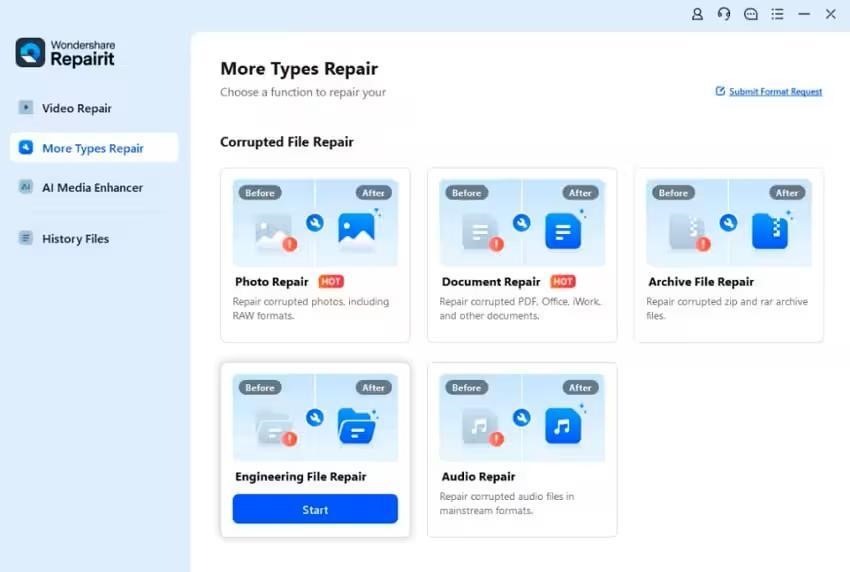
Step 1. Access Engineering File Tool in Repairit
Once you enter the main interface, press the “More Types Repair” option in the left menu and hit the “Start” button in the “Engineering File Repair” tool.
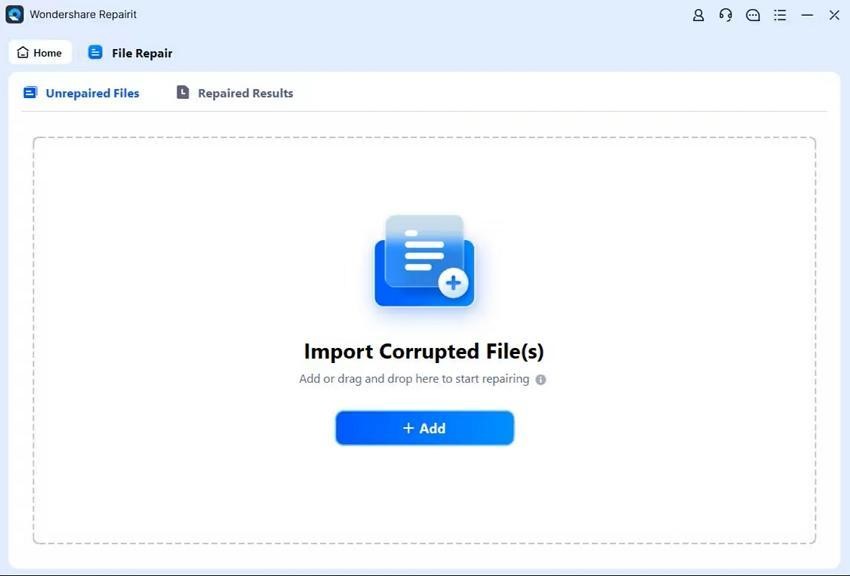
Step 2. Import AutoCAD files
Next, press the “Add” option and import your corrupted DWG files into Repairit.
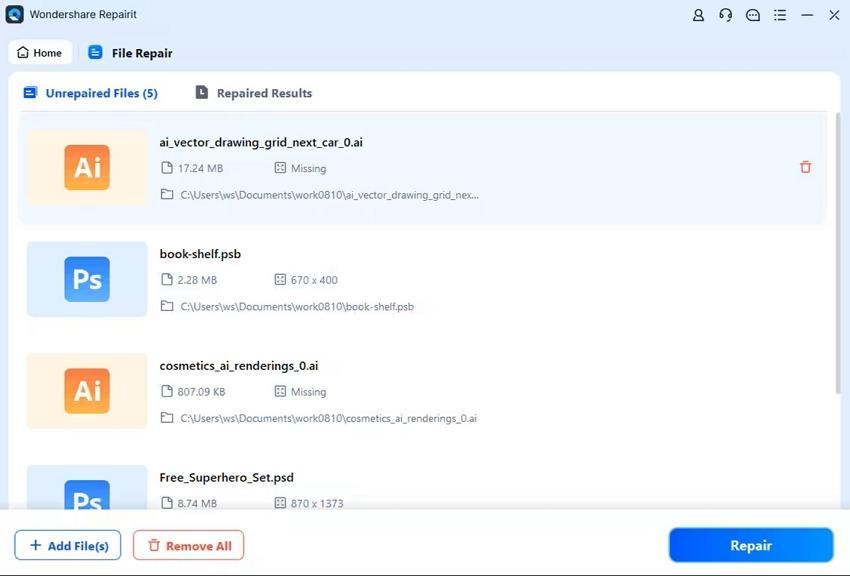
Step 3. Repair AutoCAD files
Once the files are imported, press the “Repair” button in the bottom right corner to start the repair process.
Step 4. Preview and Save Repaired DWG Files
After the tool fixes the files, hit the “Preview” button to view the file and press the “Save” button to export the repaired DWG file.

3. Try an Online DWG File Repair Tool
Many users prefer not to download and install dedicated software. For them, Repairit Online offers a quick browser-based way to repair corrupted DWG files without setup. It lets you upload damaged drawings, analyzes them on the server to fix structural issues, and then returns a clean, ready-to-use file for secure download.
In addition, it supports unlimited file size for a smooth online Excel repair experience. Repairit handles up to 16 file formats that let you repair Word, PDF, PowerPoint, and other documents on one platform.
Guide to Fix DWG File With Repairit Online
Follow the guide below to perform AutoCAD file repair online for corrupted or damaged DWG files.
Step 1. Access Repairit Online File Repair Interface
Once you enter the main online interface, click the “Add” button to access the professional online file repair interface.
Step 2. Choose File Repair and Upload a Damaged DWG
Next, hit the “File Repair” option from the left menu and click on the “Add Files” option to upload a damaged file.
Step 3. Start The File Repair Process
After uploading the damaged DWG file, hit the “Repair All” option to start the repair process.
Step 4. Save the Repaired DWG File
Once your corrupted DWG file is repaired, hit the “Download All” button to download the file.
Part 3. Repair AutoCAD: 5 Tips to Avoid Future DWG File Corruption
Before you run into another issue that requires DWG file repair, look at the preventive tips to keep your AutoCAD drawings safe from future corruption.
- Smart Save Discipline: Use frequent manual saves and AutoSave so a single crash does not wipe out your only DWG.
- Routine Cleanup: Run AUDIT and PURGE on active drawings to remove errors, unused data, and bloat that may cause corruption.
- Xref Hygiene: Keep Xrefs organized, detach obsolete links, and limit proxy objects so external references do not spread unstable entities.
- Reliable Environment: Work from healthy local or trusted network storage, avoid abrupt shutdowns, and protect systems with updated power and security safeguards.
- Aligned Software: Keep AutoCAD updated, coordinate DWG versions with collaborators, and avoid untested plug-ins that introduce risky custom objects.
Conclusion
Summing up, several factors can corrupt DWG files and put your critical design work at risk. Therefore, this guide has shown practical ways to repair AutoCAD files and restore drawings using built‑in commands, desktop repair tools, and online services. For ongoing reliability, use Repairit File Repair on desktop and Repairit Online when you need a browser-based repair for AutoCAD support.

