

Introduction
Changing the background color of any photo can completely transform its appearance, making it more professional, creative, or aligned with your design. Whether you’re editing product shots for e-commerce, adjusting social media posts, or simply enhancing personal photos, learning how to change the color of the background has become an essential skill.
Thankfully, there are multiple ways to do this. In this article, you’ll explore the top 11 methods to change color of background in images across different platforms.
Part 1. Best Way to Change Background Color of Image on Windows & Mac
When it comes to the best software for editing photos on PC, HitPaw FotorPea always stands out. This versatile solution helps users change background color of photo with a few clicks. Its advanced AI technology can automatically eliminate the background by only importing the photo and handling the rest.
To replace the background, you can either choose a solid color or any pattern from the background library, such as abstract, gradient, etc. It also offers a brush and erase tool to remove a specific object. With a user-friendly interface, it even preserves the image quality while processing.
Main Features:
- Work well on PC, iPhone/iPad, Android, and online
- Rip apart the background image with precision
- Allow you to create pro-level ID photos in seconds
- Help eliminate the unwanted objects automatically
- Change background color of multiple photos at once
How to Change the Color of the Background using HitPaw FotorPea:
Step 1. Upload Photo

The first step is to launch this program and click “BG Remover” from the main interface. Now, drag and drop the image file.
Step 2. Change Background Color
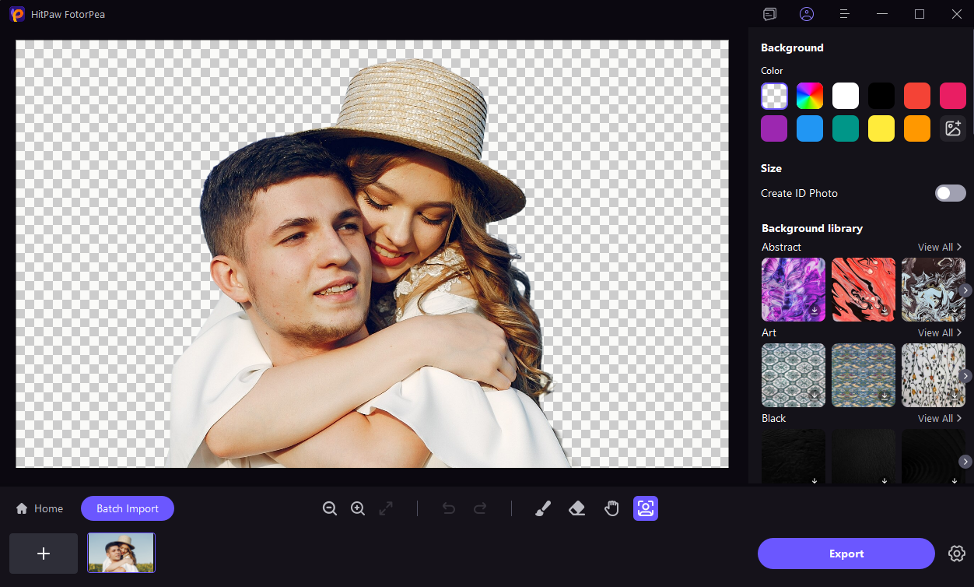
Next, you can choose the background color or any pattern from different categories under the background library.
Step 3. Export Output

Lastly, tap settings and select the output format and quality under “AI Photo Editor.” Then, hit “Export” and that’s it!
Part 2. How to Change the Color of the Background Online
If you want to avoid software installation, here are the five online tools to change background color of photo directly in your browser:
1. Cutout.pro
Cutout.pro is an advanced AI-powered tool that makes it simple to remove or change background color of image. Designed for efficiency, it supports automatic subject detection, batch processing, superb quality cutouts, and stunning edge details. Whether for e-commerce, photography, real estate, or social media, it offers a variety of background options. Here is how to use it:
Step 1. Firstly, upload photos with the unwanted background.
Step 2. Click “Editor” to change background, add text, resize, and crop photos.
Step 3. Tap “Download,” choose “JPG” or “PNG” format, and save the output.

2. Fotor
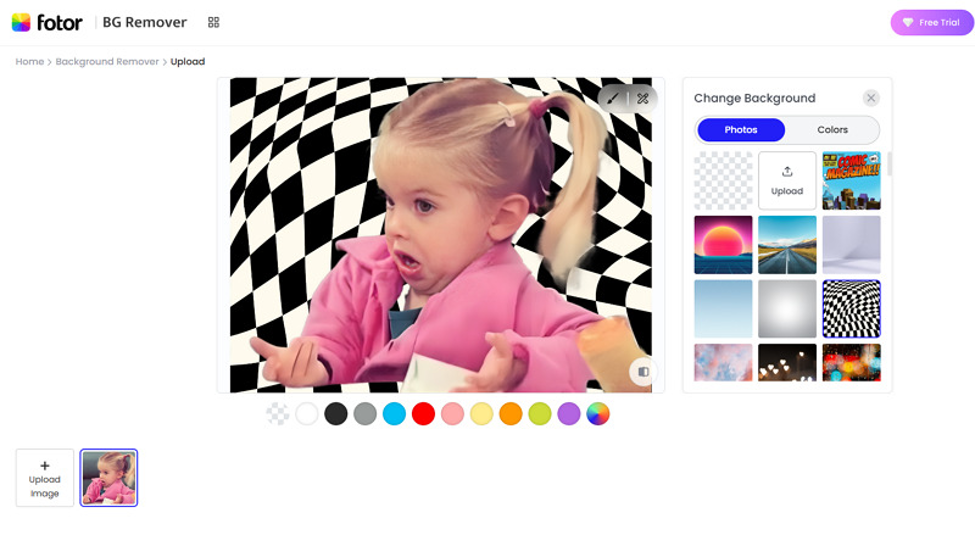
Fotor is an all-in-one online photo editor that offers a powerful background changer tool. It can effortlessly remove or change background color of image in a single click to a solid color, pattern, texture, landscape photo, or more. It also lets you adjust saturation, brightness, contrast, and hue to highlight your subject. Let’s follow the given steps:
Step 1. Open the website, click “Change Background Now,” and upload the image.
Step 2. Now, choose any solid color, photo, pattern, or “AI Background.”
Step 3. Tap the preview icon. If it’s okay, hit “Download HD” or “Download Preview.”
3. Pixelcut
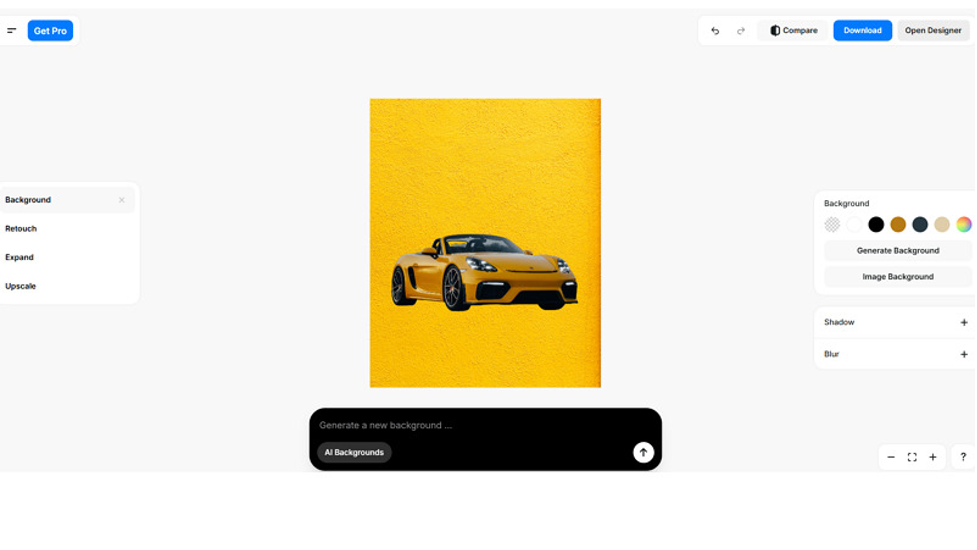
Pixelcut is a free AI-driven background remover that can effortlessly transform photos into transparent images or white backgrounds. You can later add preset colors and choose from thousands of curated backgrounds or generate a new background. It even offers retouch, expand, upscale, and other features to enhance image quality. Here is the tutorial:
Step 1. First of all, access the website and click “Upload image” to import the file.
Step 2. Next, pick a color or press “Image Background” to choose the desired image.
Step 3. Then, tap “Compare” and if it’s okay, hit “Download.” That’s it!
4. inPixio
inPixio combines simplicity with unmatched precision, enabling users to remove backgrounds and replace them with colors, templates, or AI backgrounds. You can also add text, elements, apply filters, and adjust other parameters. Whether enhancing portraits, group shots, or landscapes, it ensures quick and seamless processing. Here is how to change the color of the background with inPixio:
Step 1. Open the website and click “Change Background Now.” Now, tap “Add Photo” to import from a computer or phone.
Step 2. Press “Remove Background” and select a background image or color.
Step 3. Lastly, you can edit the photo as desired and then hit “Download.”

5. Predis.ai
Predis.ai offers a suite of free AI tools, including an intuitive background color changer. It allows users to upload photos with a transparent background and instantly apply the desired solid/gradient color or any image. It is also available as a mobile app for Android and iOS. Here is how to change color of background:
Step 1. After accessing this website, tap “Upload Image” to import the photo.
Step 2. Now, you can choose the desired background image or the color.
Step 3. Then, hit “Download” to save the output to your device. All done!

Part 3. Top 5 Mobile Background Color Changer Recommendations
For users who edit on the go, here are the five best mobile apps to change background color of image. Let’s explore their features with the step-by-step tutorial for each application:
1. LightX
LightX is a versatile photo editor for iOS and Android users, enabling them to remove backgrounds or objects from photos. With AI-based replacement technology, you can change background color of photo with a single color, gradient, or image background while applying filters or effects. However, the free version displays numerous ads. Below is the tutorial:
Step 1. Open this app, click the Remove Background” button, and choose the photo.
Step 2. When the photo is removed, tap “Continue” and select the background.
Step 3. Then, tap “Save,” pick a format and size, and hit “Download.”
2. Facetune
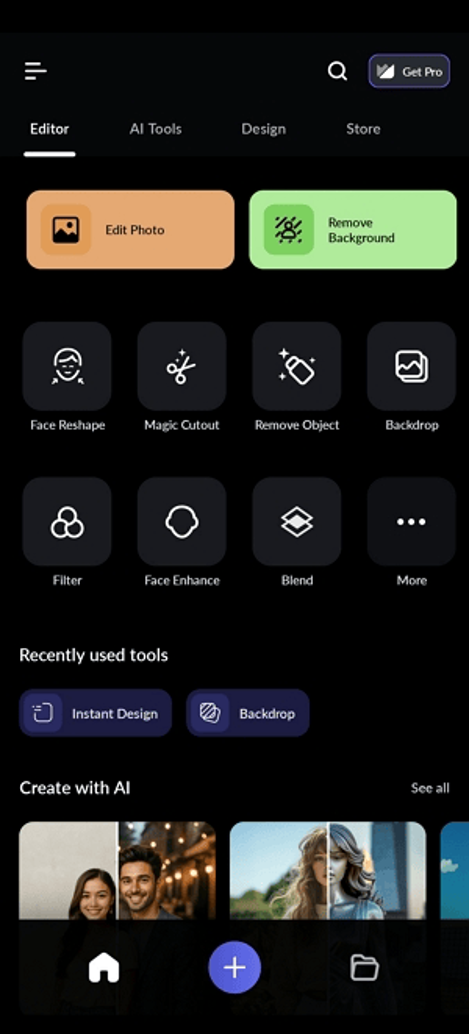
Facetune is a remarkable app with expert-level editing capabilities, including a reliable background color changer. Available for both Android and iOS users, its smart backdrop feature allows them to replace backgrounds with solid colors or stylish effects. You can also enhance, refine, defocus, apply filters, resize, and adjust brightness. Here is how to change color of background:
Step 1. Open the Facetune app and upload your photo.
Step 2. Click “Backdrop,” and choose from the presets.
Step 3. Try the other tools if needed and then tap “Save.”

3. Airbrush
Airbrush is another powerful mobile editing app that allows you to change background color of image effortlessly with the desired image from the available presets or your device. Whether refining portraits or designing creative visuals, you can achieve studio-quality results with various editing features, including AI retouching, filters, effects, text, etc. Let’s learn to use it:
Step 1. Install & open the app and choose the required image.
Step 2. Now, find the “Background” option and select the preferred choice.
Step 3. Then, hit “Save” or choose the social media platform for direct sharing.

4. FaceApp
FaceApp goes beyond its viral filters and effects with a background changer tool that can quickly remove or replace backgrounds, allowing you to select from solid colors or creative designs. Its other editing features include age and gender alteration, retouching, painting, overlays, cropping, and adjustment. Below is a step-by-step guide to using this app:
Step 1. Launch the application and pick the image to remove the background.
Step 2. Next, locate the “Background” feature and select any colour or image.
Step 3. Lastly, press the “Save” tab or share it directly on social platforms.
5. PhotoDirector
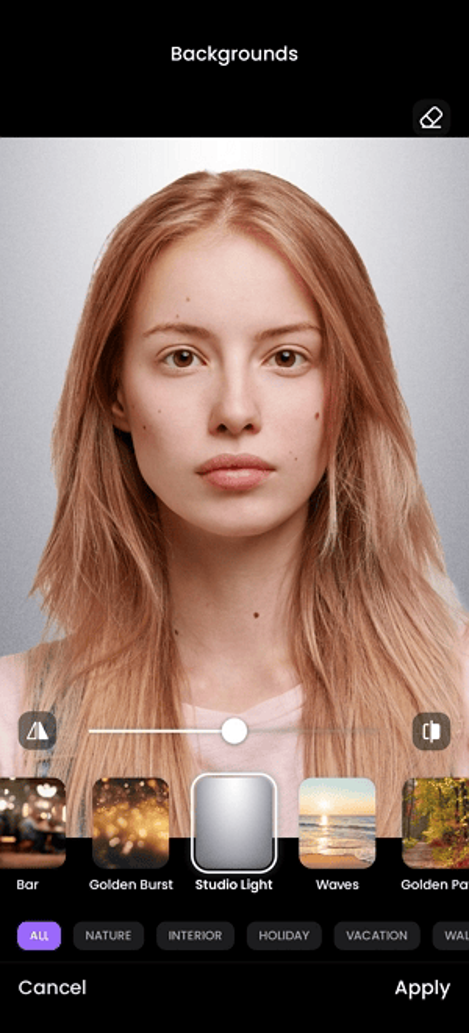
PhotoDirector is an all-in-one photo editor that stands out for its AI-powered background changer. With just a tap, you can change background color of photo, add artistic effects, and enhance overall quality. You can also use the brush and erase tool to remove specific objects. It also ensures fast, high-quality edits. Let’s comply with the given steps:
Step 1. Open this application, press the “AI Photos” button, and choose “AI Background.”
Step 2. Pick the required image, and you will see various background templates available.
Step 3. Finally, select a background, click the Apply icon, and save it to your phone.

Conclusion
Going through this post, you should’ve learned how to change color of background without advanced Photoshop skills. Whether you want to edit on Windows, Mac, a browser, or a mobile phone, there are powerful and user-friendly solutions available.
Although you can pick any tool, HitPaw FotorPea is highly recommended for the most versatile experience. Let’s try it today for AI precision and multiple background options.

