

A long wait just to start Windows, especially if you need to work, study, or quickly browse, can be frustrating, and most users experience this.
Unnecessary startup programs, outdated drivers, temporary files, and background services are behind it. Luckily, by applying a few tweaks and minor adjustments and properly maintaining the system, a PC can run faster and have an improved Windows startup time.
This article explains how to speed up PC boot times by applying simple manual fixes and using PC optimization software.
Why Does Windows Startup Become Slow
Before jumping to solutions to speed up your PC, let’s first understand the reasons behind a slow Windows startup time.
- A large number of junk files
- Too many startup applications
- Outdated Drivers
- Less storage space available
- Malware infections
- Background synchronization tools
- Useless Windows services
- Outdated HDDs instead of SSDs
If Windows has many processes to load at startup, your PC will take longer to start.
1. Disable Unnecessary Startup Programs
One of the simplest ways to reduce Windows startup time is to stop unnecessary applications from auto-start. Applications like cloud storage, messenger, game launchers, update tools, and media players add themselves to start at Windows startup without being permitted, slowing down boot time.
Disabling them will help in starting the system quickly:
Step 1: Press Ctrl + Shift + Esc and open the Task Manager.
Step 2: Click Startup apps and check for any unnecessary applications enabled.
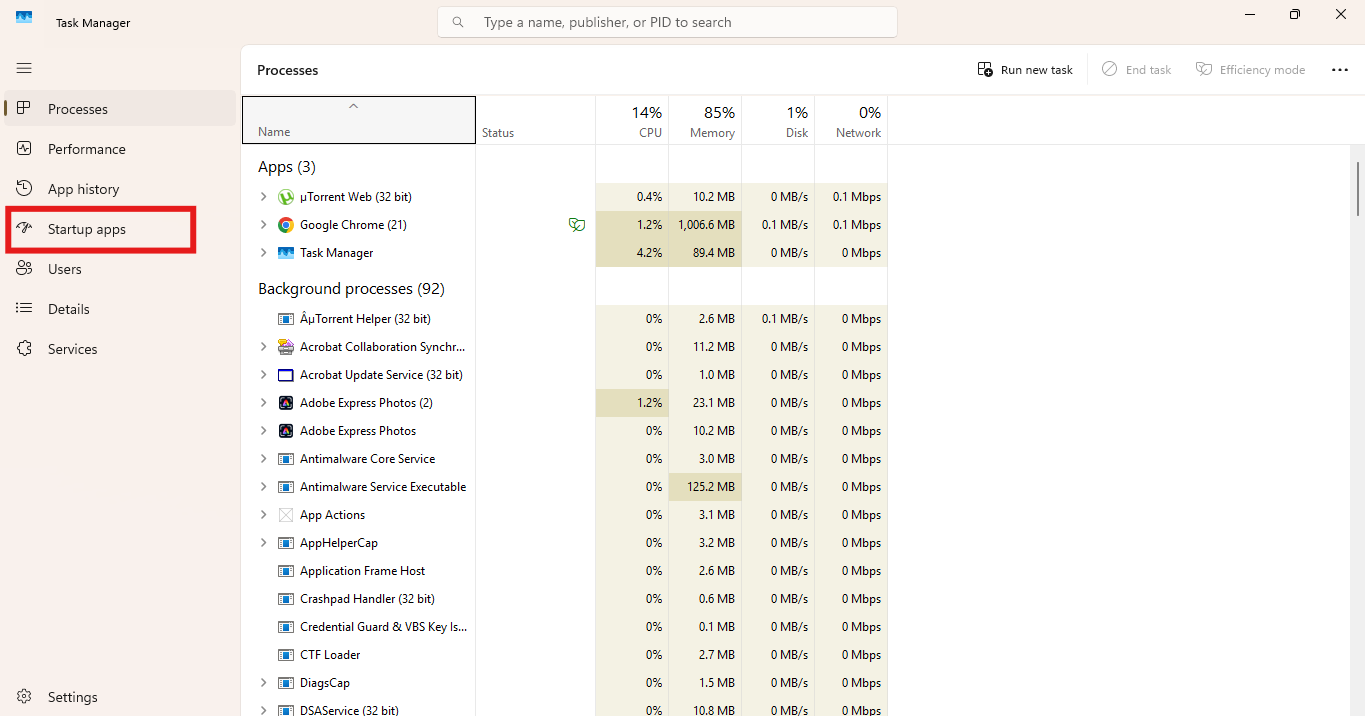
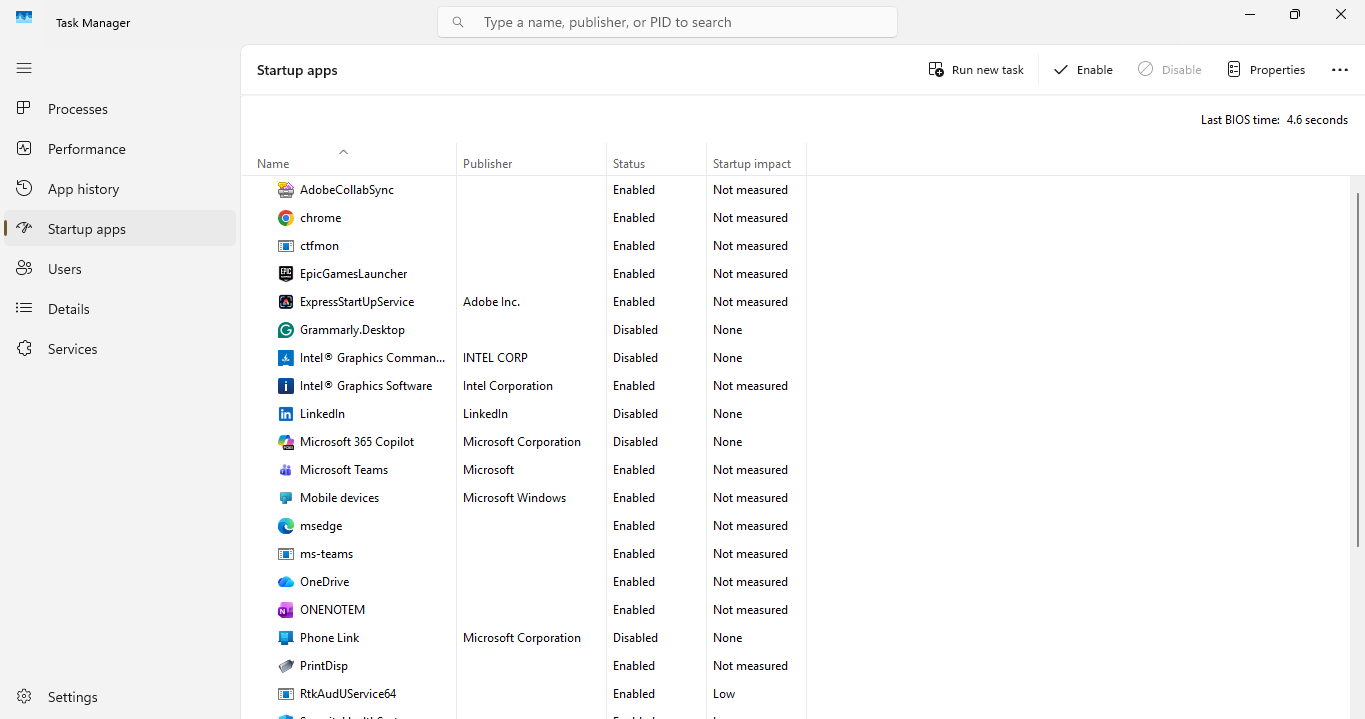
Step 3: Right-click on the application and click Disable on the applications that you don’t use just after logging in.
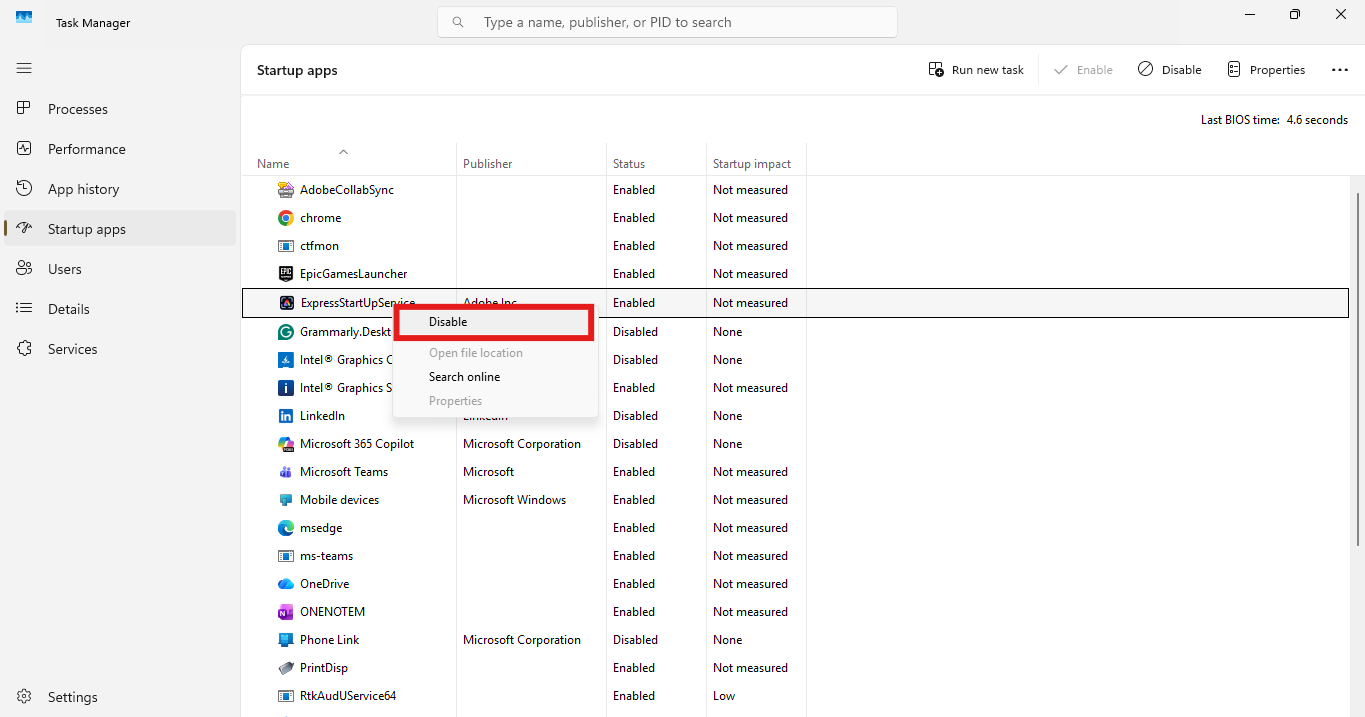
Usually, applications with high startup impact affect boot-up time. When done right, this method alone can make your PC boot faster.
2. Enable Windows Fast Startup
Microsoft has a built-in Fast Startup feature that saves important system information when you shut down, and start your PC. It uses this information to load quickly, reducing startup time.
To turn on Fast Startup in your PC follow these steps:
Step 1: Open the Control Panel and click on Hardware and Sound
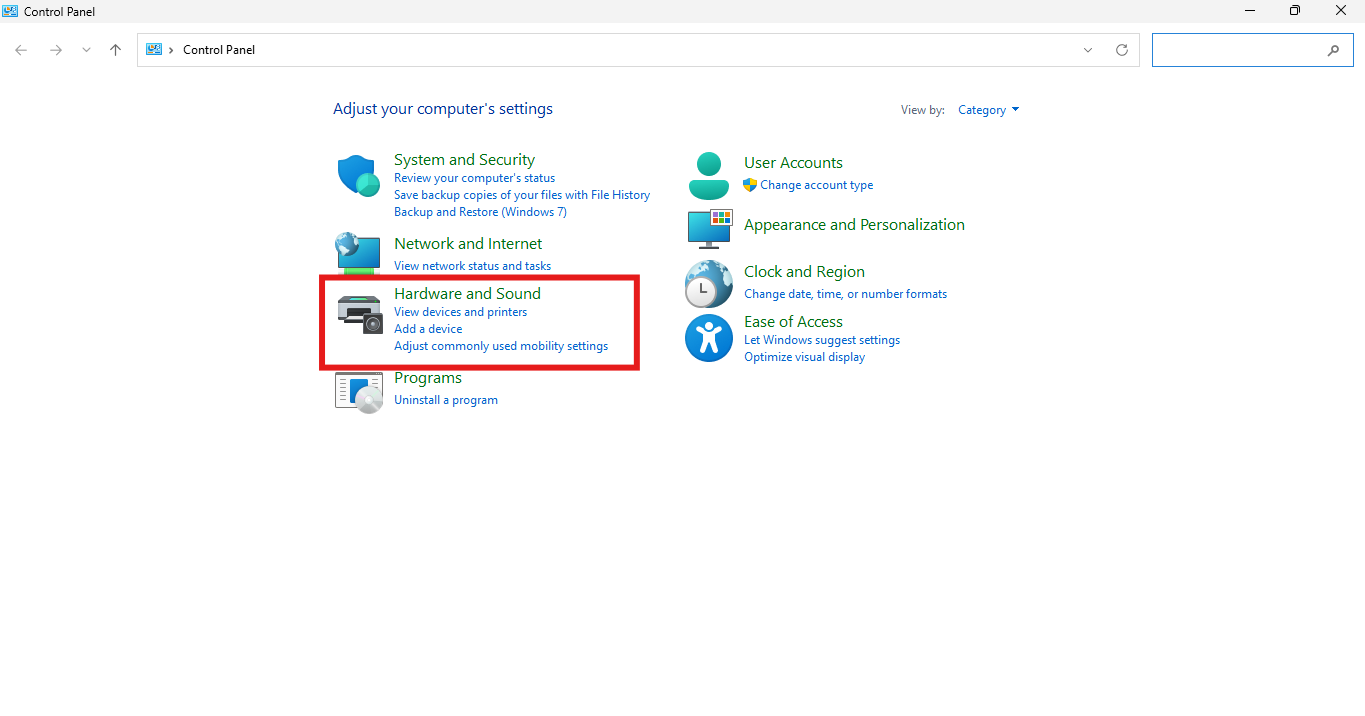
Step 2: Now select Power Options
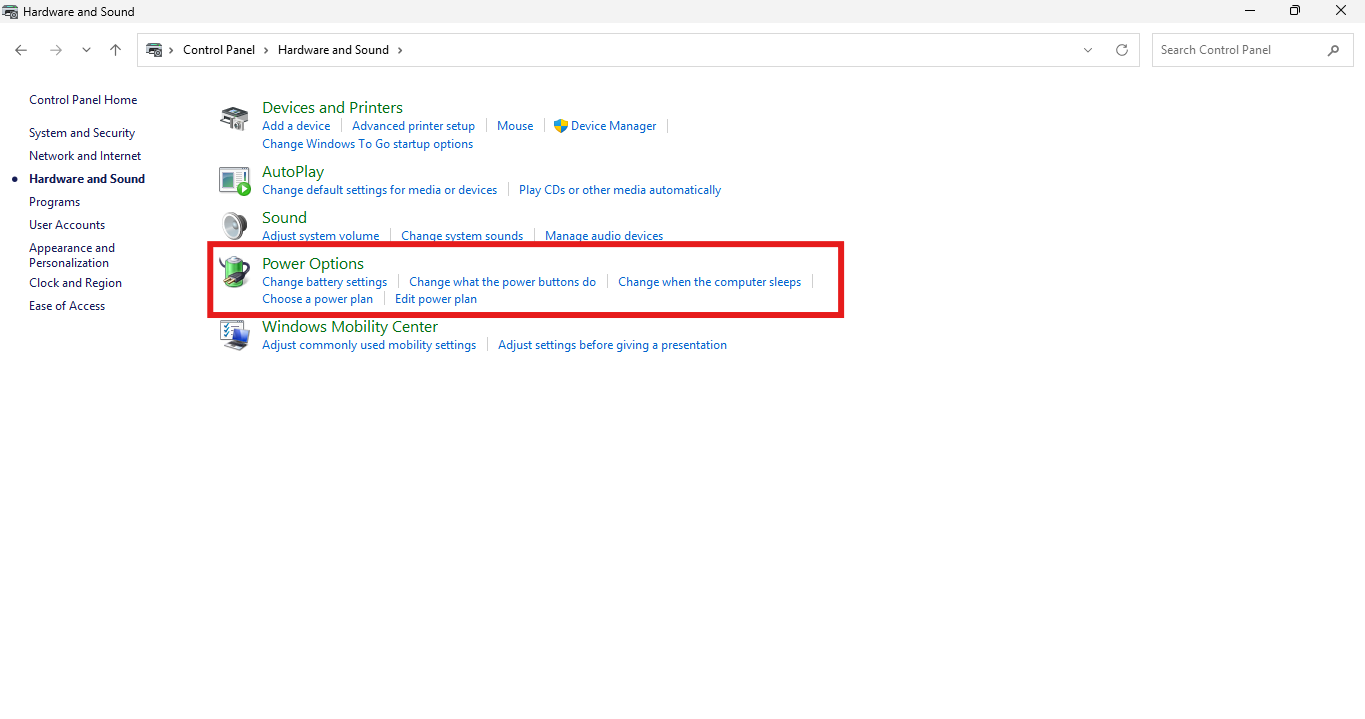
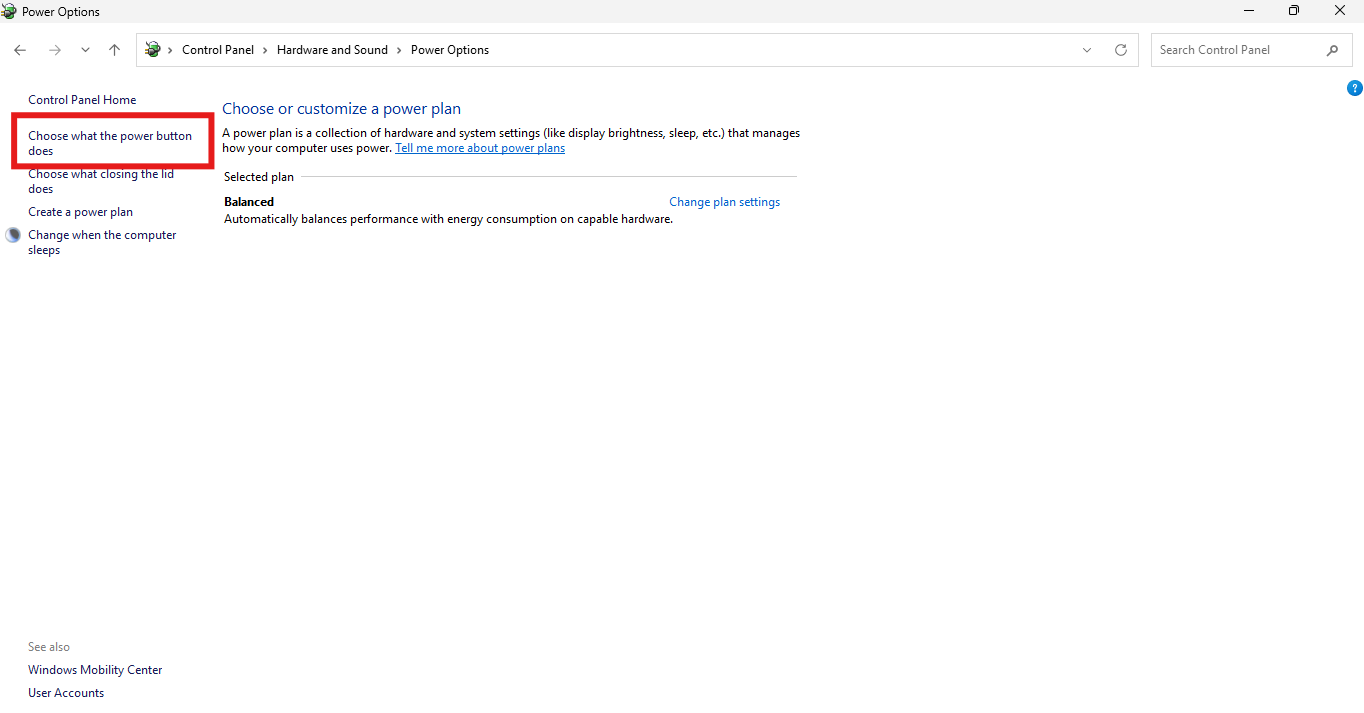
Step 3: Click on Choose what the power buttons does and select Change settings that are currently unavailable.
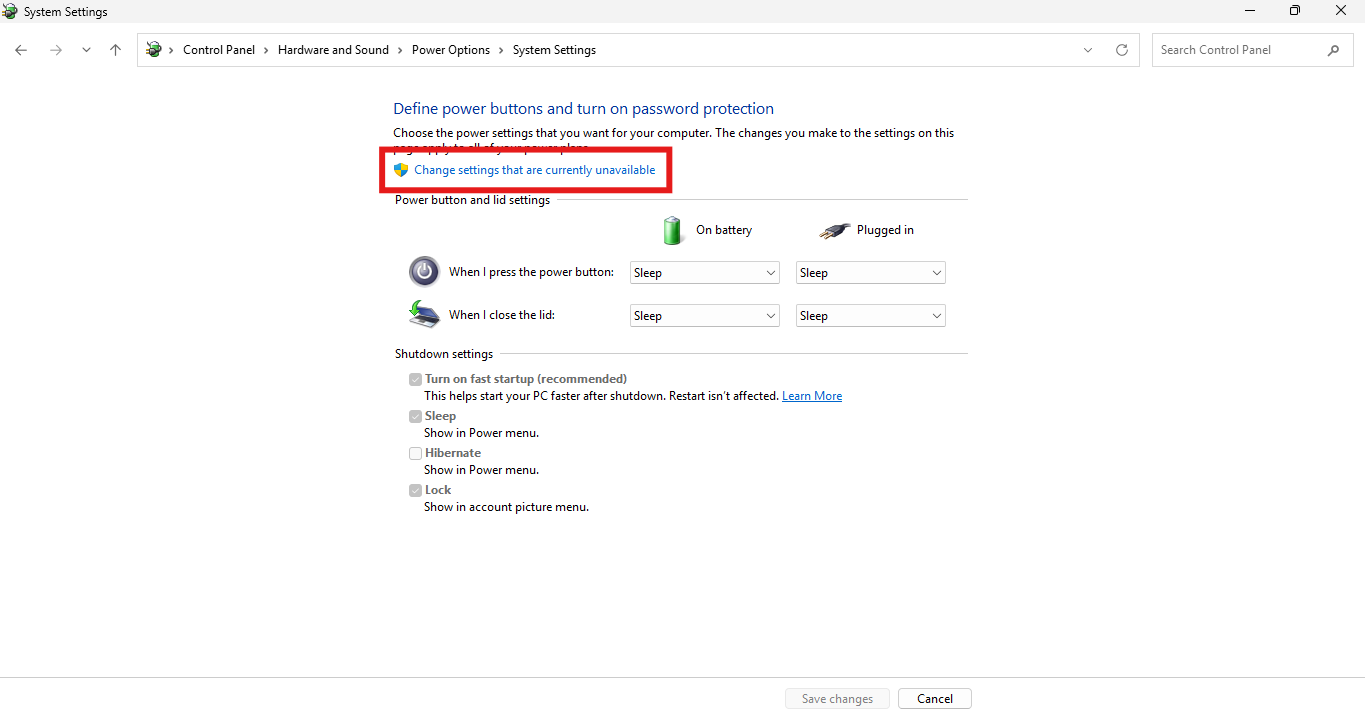
Step 4: In Shutdown Settings, select Turn on Fast Startup, then click Save Changes.
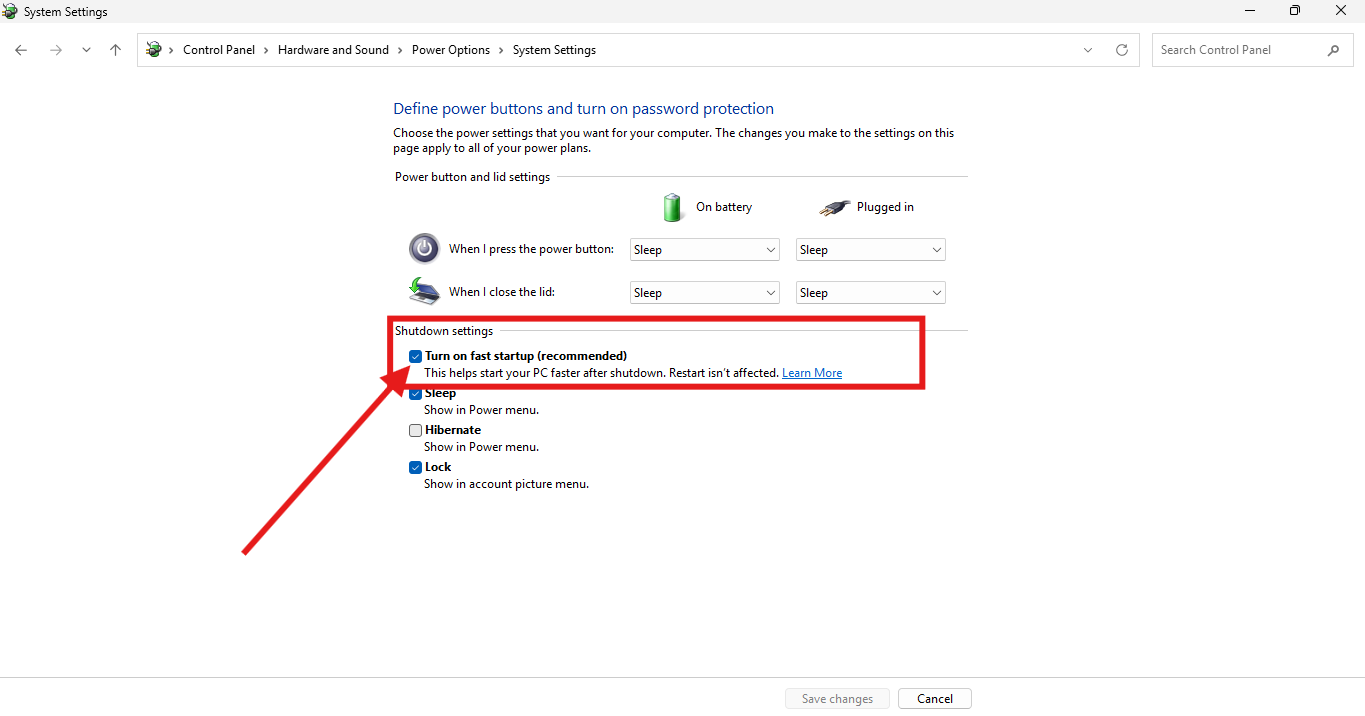
If you have older systems, enabling Windows Fast Startup can significantly improve Windows Startup Performance.
3. Remove Temporary Files
Temporary or junk files accumulate over time on your PC and affect overall performance. Deleting these files from the Temporary Folder on your system drive can help improve your PC’s startup time and smooth out performance.
What you can delete:
- Recycle Bin Files
- Log Files
- Temporary Files
- Browser cache
- Update residue
Windows provide cleanup tools, but an advanced optimization software helps scan the system thoroughly and remove unnecessary files. Regularly cleaning up the system using a PC optimization software saves time and effort.
4. Keep Your Drivers Updated
Drivers work as a communication bridge between Hardware and Windows. This is why Windows’ boot-up time is affected when it is outdated. You can update them by downloading the latest version from the manufacturer’s website, through Windows Update, via Device Manager, or with a driver-updating tool.
Always check for drivers like:
- Graphics drivers
- Storage Drivers
- Network Drivers
- Chipset Drivers
5. Scan for Malware
Malware is another major cause of delayed Windows startup time. Infected programs can automatically start at startup and consume important resources in the background, affecting Windows startup time.
Signs to detect malware-infected programs on your PC:
- High Disk Usage
- Slow login times
- Frequent hanging of the system
- A lot of CPU consumption
Solve this issue by regularly scanning your PC with trustworthy security software and keeping it free of malicious programs that can affect the PC overall.
6. Upgrade From HDD to SSD
One of the best ways to improve Windows startup time is to move from traditional HDDs to SSDs.
Average boot comparisons:
| Storage Type | Typical Boot Time |
| HDD | 60-120 seconds |
| SATA SSD | 15-30 seconds |
| NVMe SSD | 5-15 seconds |
Switching to an SSD solves the issue for users looking to improve Windows startup and system performance. It also reduces loading time, speeds up file transfers, improves application startup, and provides better performance.
7. Uninstall Unused Applications
On the PC, many applications automatically run in the background without even knowing. Such applications consume a lot of resources even if they don’t get used that much.
How can you delete such applications:
Step 1: Press Windows + I. Click Apps > Installed apps.
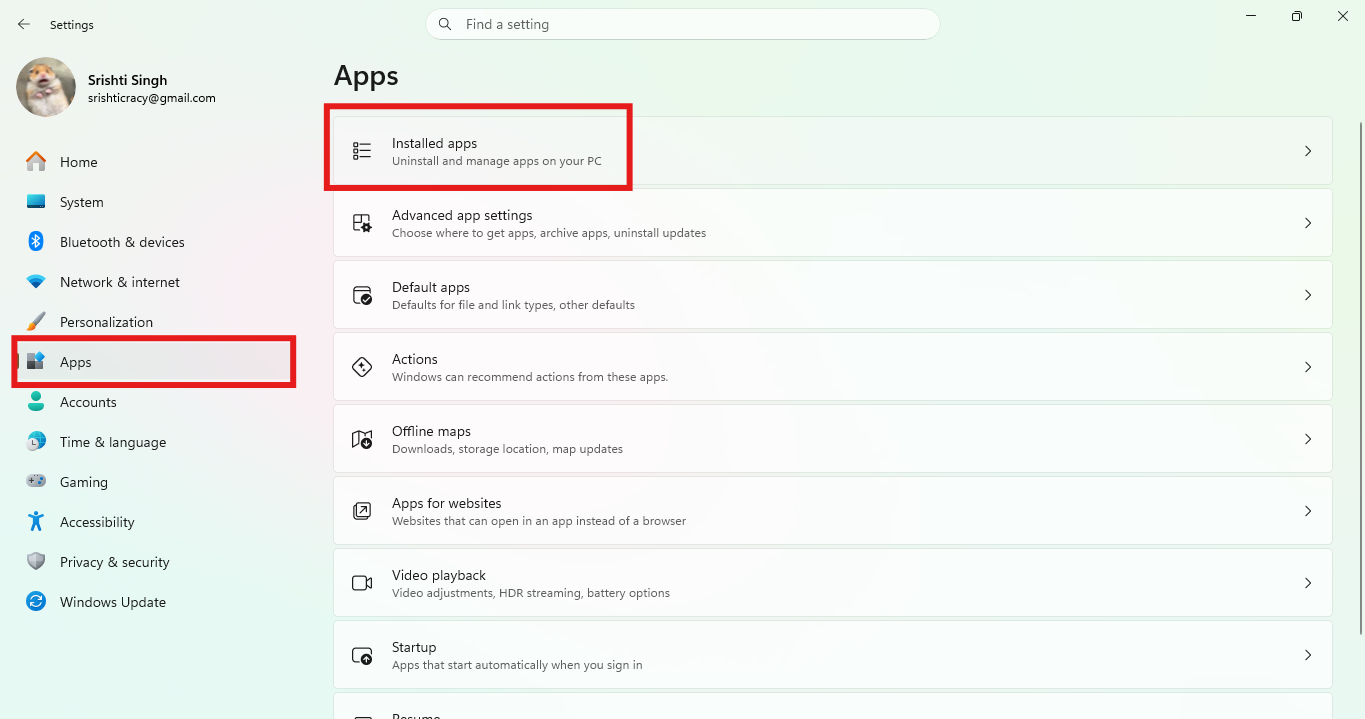
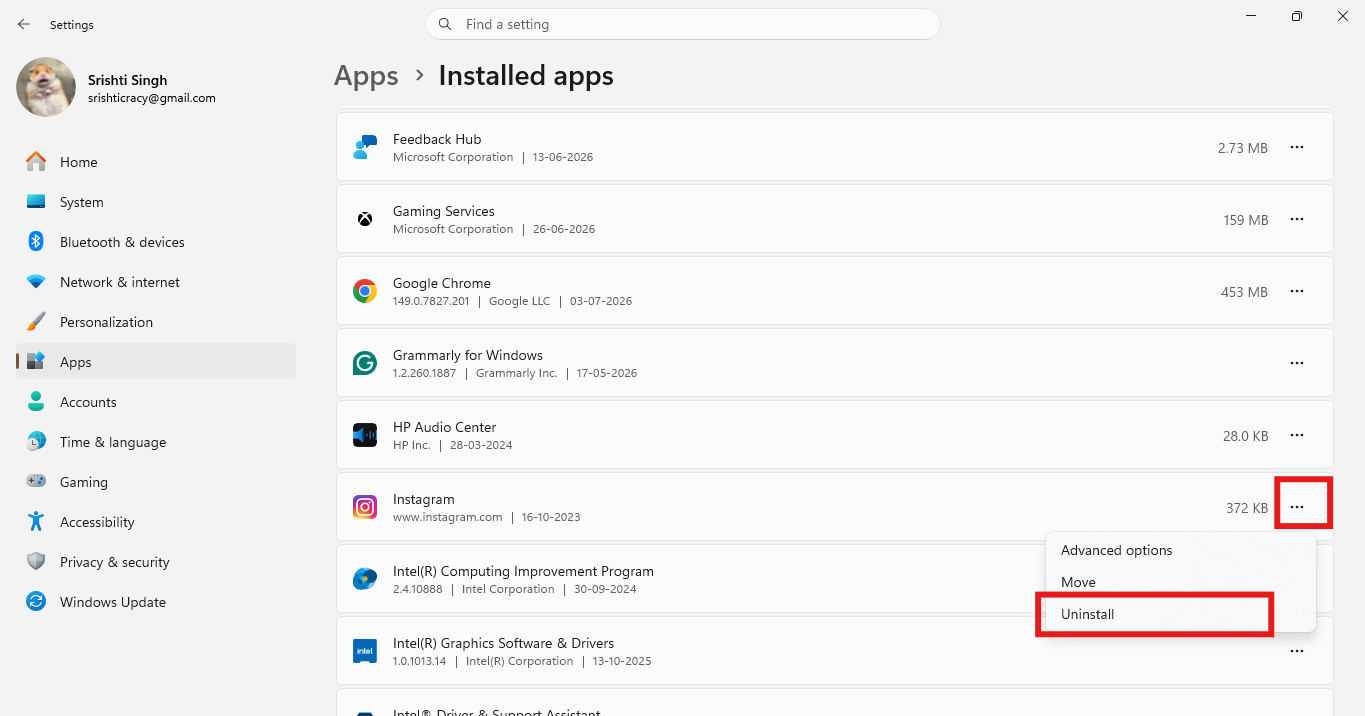
Step 2: Find the applications that you do not use.
Step 3: Click the three dots, select Uninstall, and confirm again.
8. Optimize Disk Health
The storage drive plays an important role in Windows Startup time. Keeping it optimized helps reduce boot time and improve your PC’s performance.
HDD users should defragment the drive, as scattered files slow down file access. Defragmenting these files reorganizes them, allowing Windows to read them more easily.
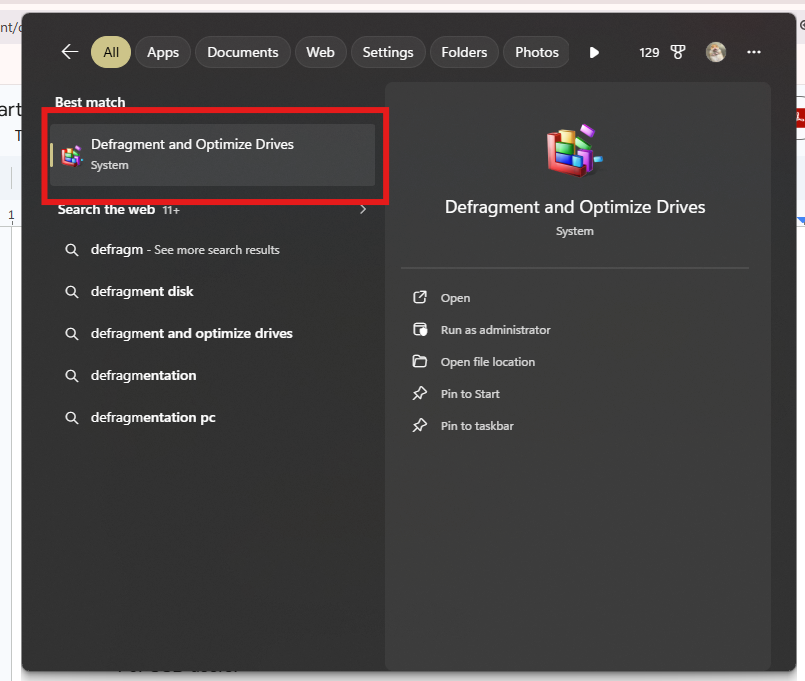
Step 1: Type “Defragment” in Windows search and select Defragment and Optimize Drives.
Step 2: Click the system hard drive (usually C:), select Optimize.
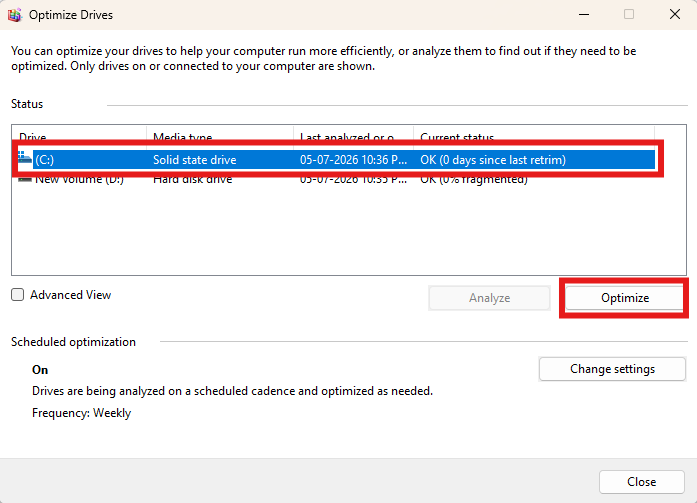
This will help defragment the system drive.
SSD users should keep TRIM enabled to help maintain SSD performance. Follow the steps to check if TRIM is enabled:
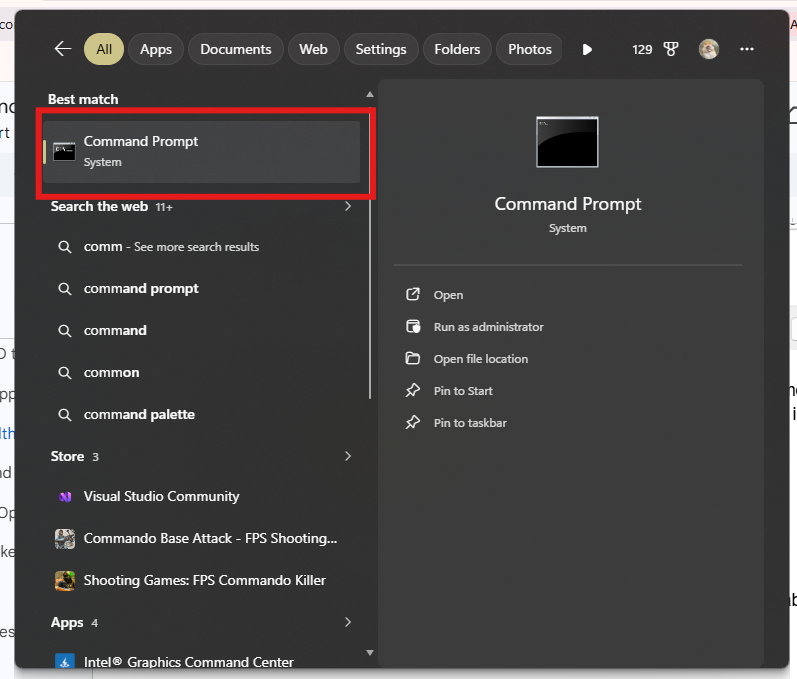
Step 1: Search for Command Prompt.
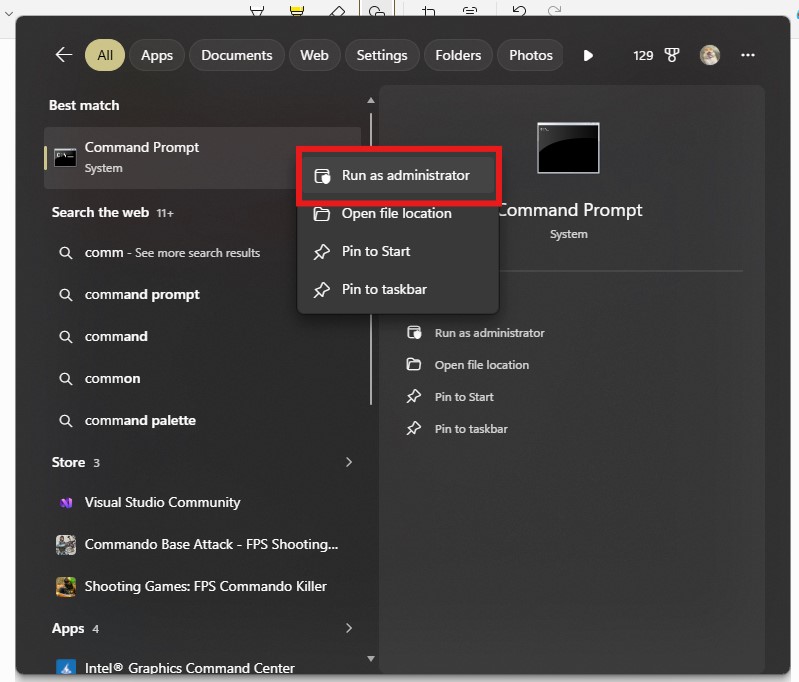
Step 2: Right-click on Command Prompt and select Run as Administrator.
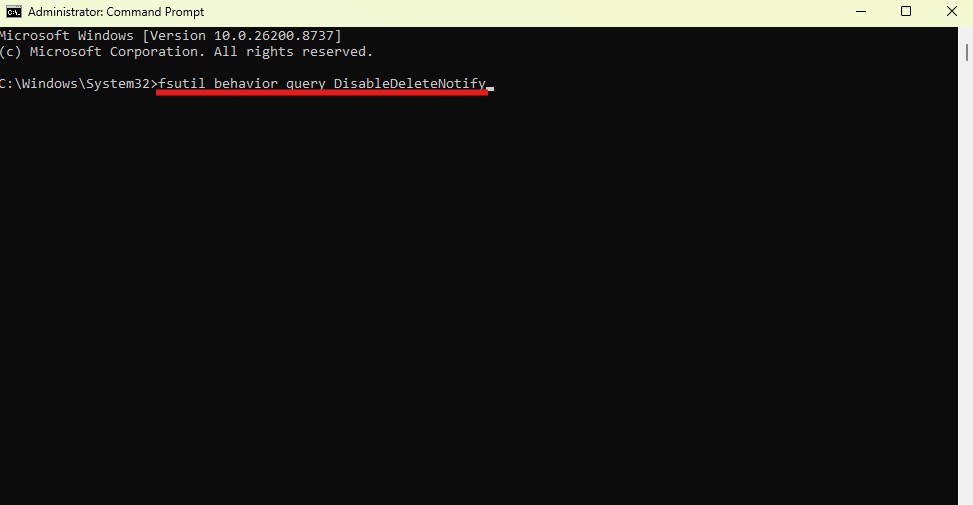
Step 3: Copy and paste – fsutil behavior query DisableDeleteNotify and press Enter:
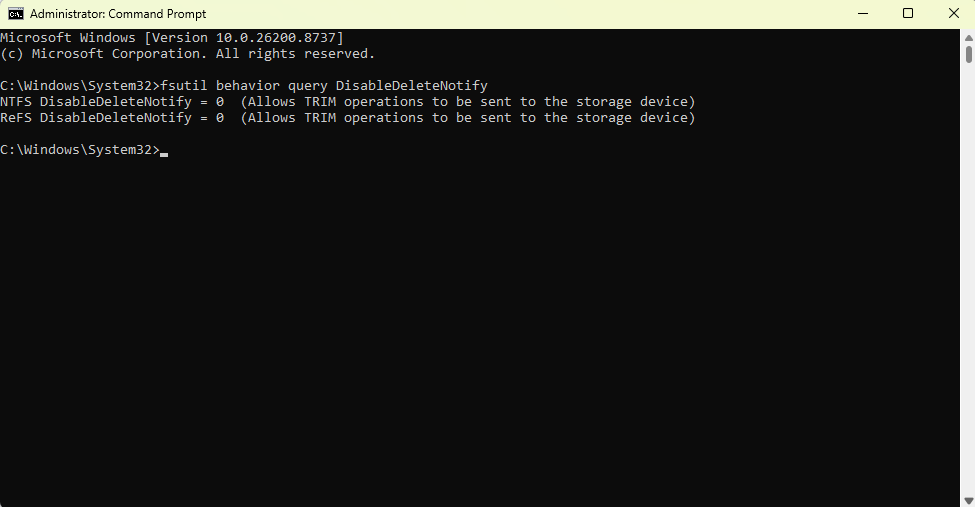
Step 4: If it shows DisableDeleteNotify=0, TRIM is enabled. If it’s 1, it is disabled. Enable it.
9. Close Unwanted Background Services
Unwanted background services like Fax Service, Remote Registry, and Legacy compatibility services consume a lot of CPU. Reduce the Windows boot time by following the steps to review startup services:
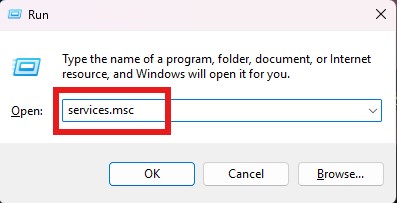
Step 1: Press Windows + R > type services.msc and press Enter.
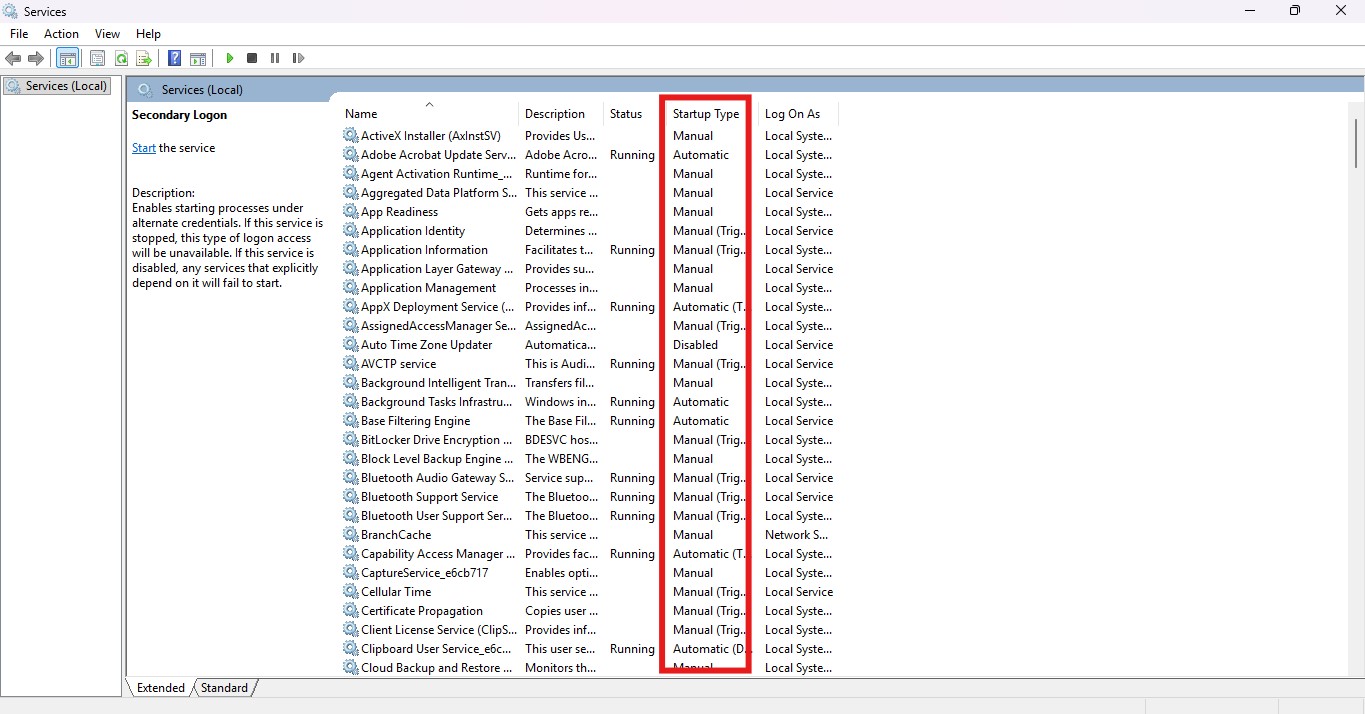
Step 2: Check all the services, and under Startup, see if it is set to Automatic, Manual, or Disabled.
Step 3: Double-click the service to manage, and stop or start as required.
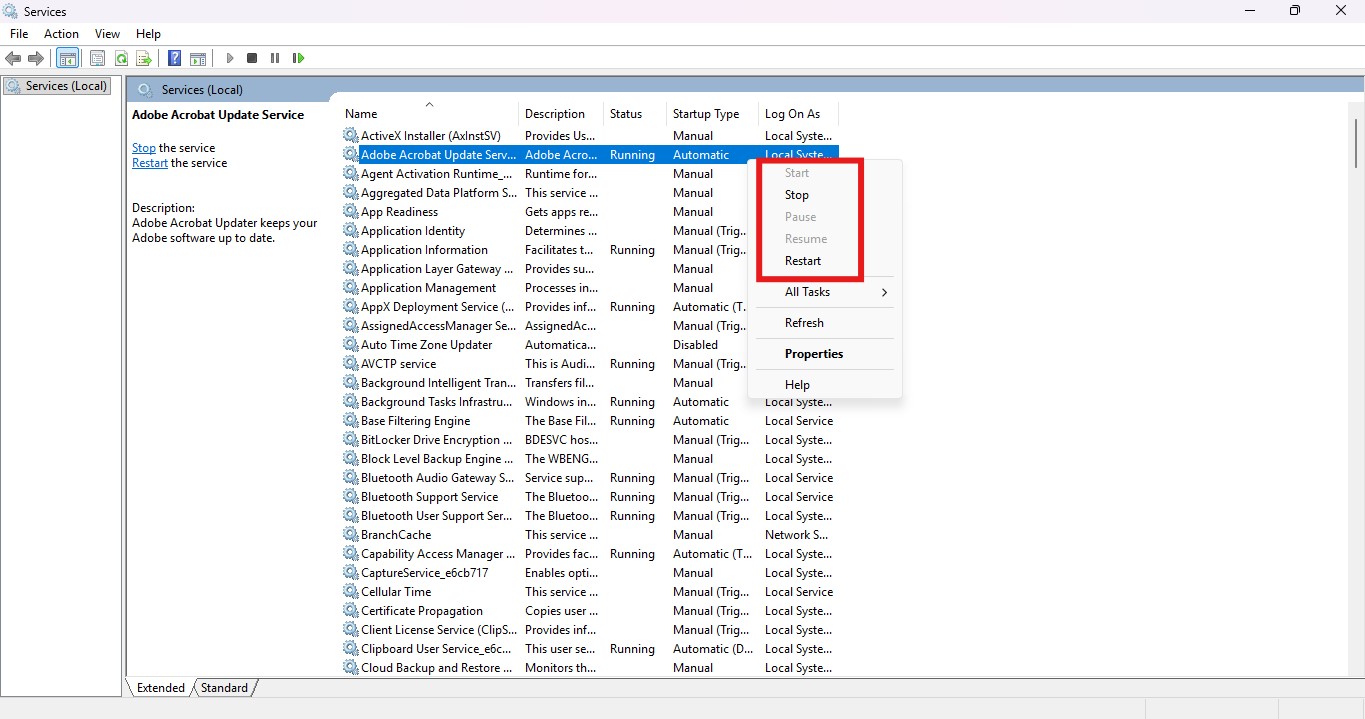
Note: Do not disable or stop any service you are not sure of or are related to Windows.
10. Use an Optimization Tool
Using a system optimizer like Systweak Advanced System Optimizer, with 25+ tweaking tools designed to clear junk files, manage startup items, clean the registry, optimize disk performance, and more, is one of the best ways to get things done automatically.
To use it follow these steps:
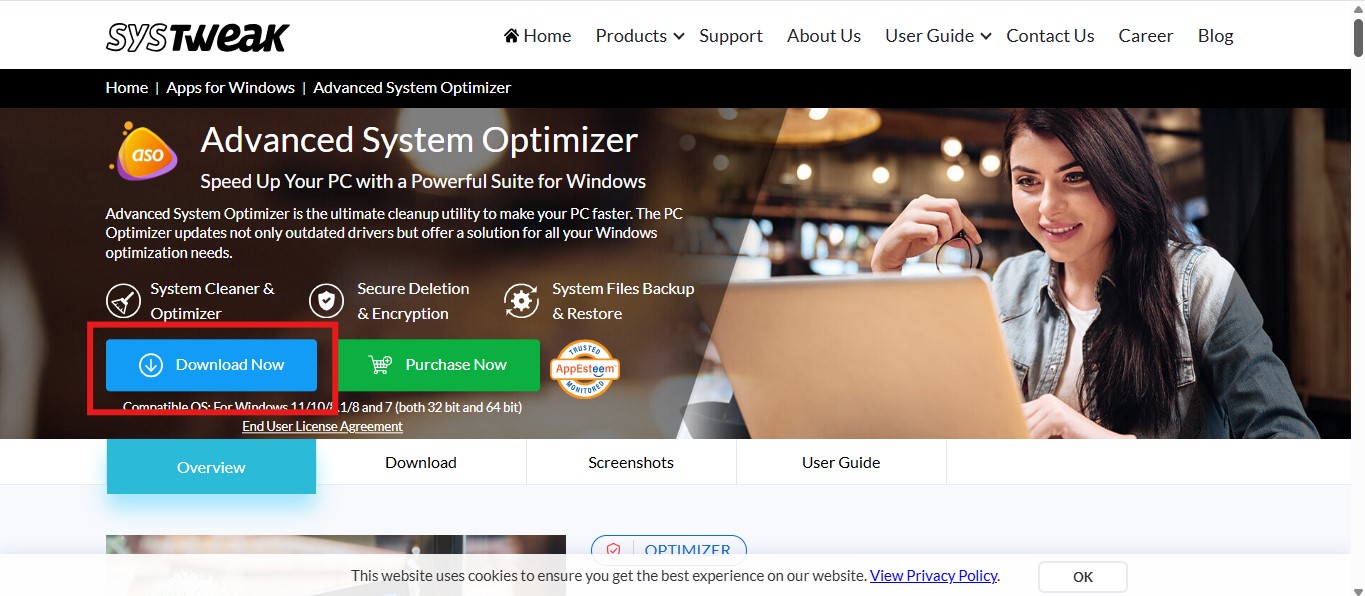
Step 1: Download and install Advanced System Optimizer.
Step 2: Open the application. The Home Screen will show three different scan types. Pick one as per your requirement.
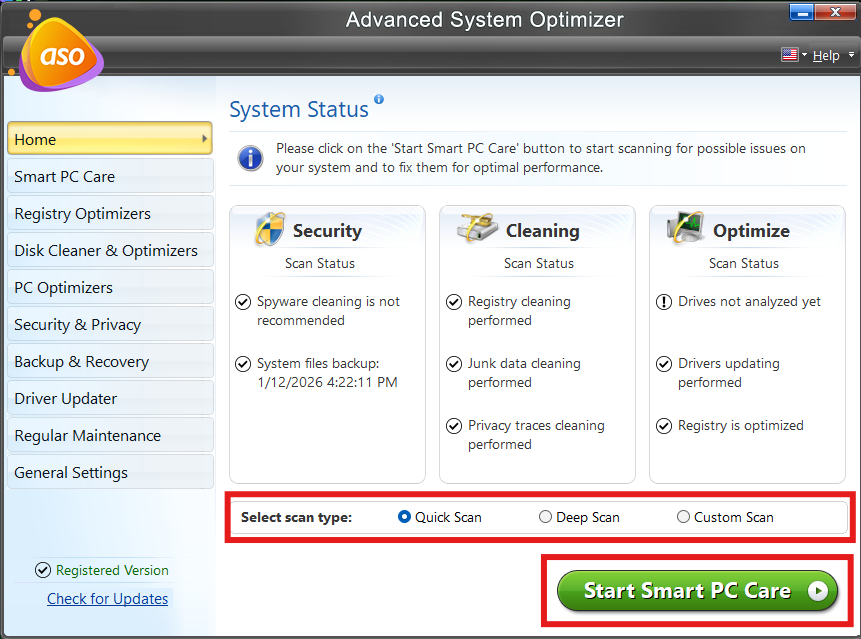
If you are optimizing a PC for the first time go with Deep Scan but remember it will be time-consuming so run it when the system is in an ideal state. However, if you are looking for a quick fix Quick Scan, and to choose which areas to scan you have Custom Scan.
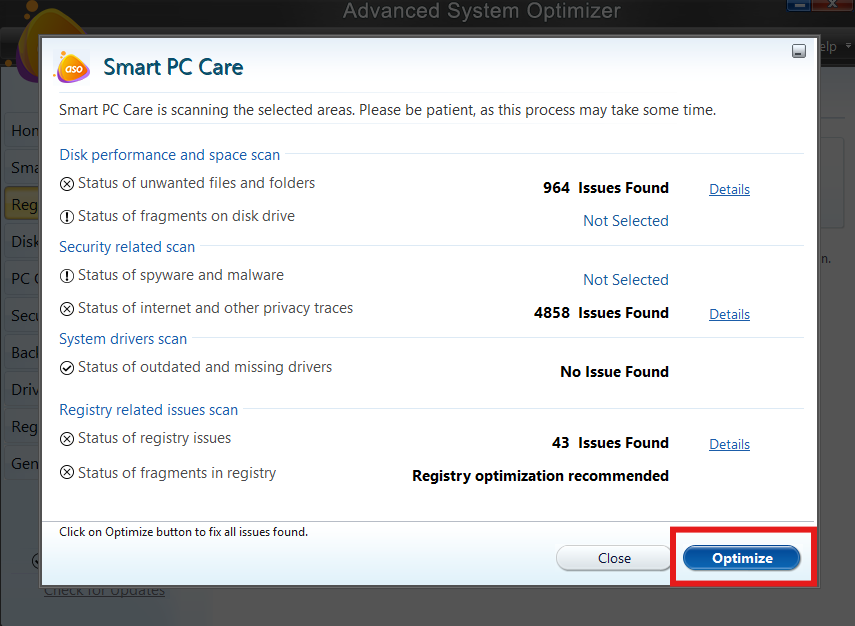
Step 3: Click Start Smart PC Care to run the scan. Once done, click Optimize. Restart your PC to see a boost in system startup speed.
Additional Tips to Boost Computer Speed
- Regularly shut down and restart your PC instead of putting it to sleep mode.
- Keep a minimum of 20-25% free storage space.
- Always keep Windows updated.
- Avoid installing unnecessary software.
- Use an updated security tool with real-time protection.
- Check startup items.
These fee tips will help improve the Windows Startup Time.
Conclusion
A slow startup does not mean the PC is no longer of use. This can be due to unnecessary startup applications, outdated drivers, numerous useless background processes, temporary junk files, and other reasons. You can follow the methods explained in the post to reduce delayed Windows startup.
Also, adopting a regular maintenance routine and using an optimization tool makes a big difference in your PC’s performance.
Frequently Asked Questions
Q1: Can you suggest a good PC Optimization Software that can improve Windows startup time?
A: You will find several optimization tools in the market. We recommend using Advanced System Optimization to optimize the PC smoothly.
Q2: What if I add more RAM? Will it improve startup time?
A: Yes, adding extra RAM and switching to SSD improves system performance and helps boost speed.
Q3: Why my PC is taking 10 minutes to start?
A: This can happen if there are too many startup applications, less storage space, malware infections, old hard drive hardware, or outdated drivers.

