

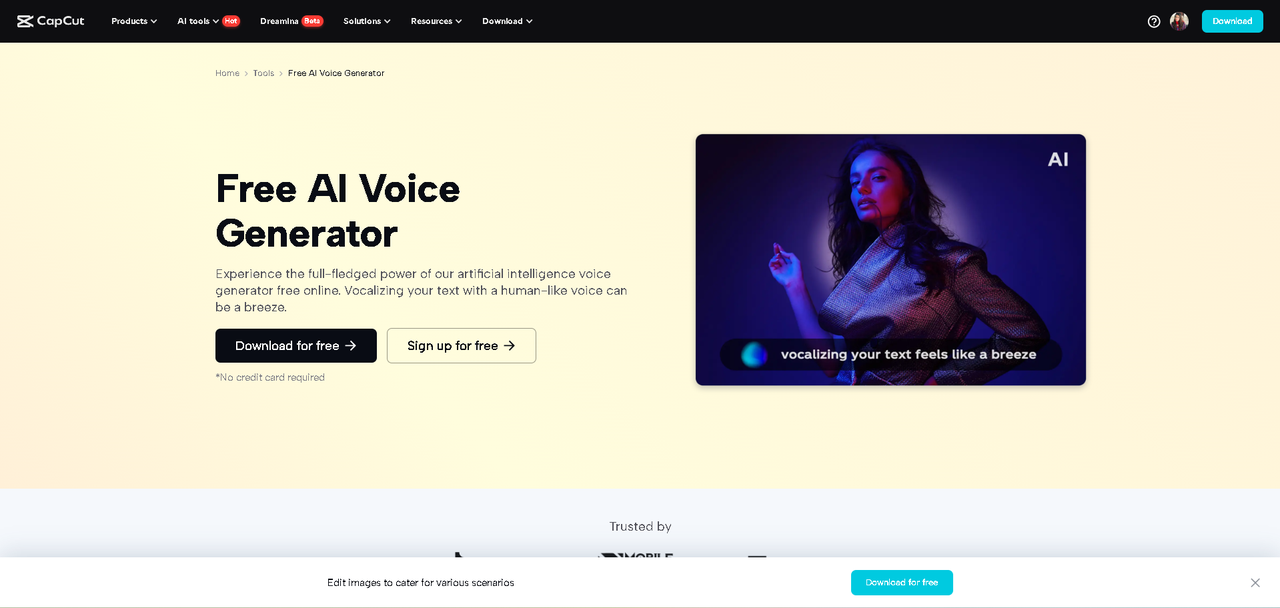
In today’s interconnected world, creating content that speaks to people across different cultures and regions isn’t just a plus—it’s a must. Whether you’re a content creator, educator, marketer, or business owner, adding multilingual voiceovers can significantly expand your reach. Fortunately, with CapCut Desktop Video Editor, doing this is easier and more accessible than ever. CapCut’s AI Voice Generator supports dozens of languages and regional accents, helping you generate professional-grade voiceovers without hiring voice actors or learning new languages. In just a few steps, you can narrate your content in English, Spanish, Arabic, French, Mandarin, Chinese, and many more—helping your videos travel the globe.
Why Use Multilingual Voiceovers?
1. Expand Your Audience
By offering voiceovers in multiple languages, you make your content more accessible to global viewers. This is especially helpful if you’re posting on platforms like YouTube, TikTok, or Instagram, where your videos can go viral in regions beyond your own.
2. Boost Engagement
People are more likely to engage with content in their native language. Multilingual narration can improve watch time, likes, shares, and even conversions for product videos.
3. Create Inclusive Content
Whether you’re making educational videos, explainer content, or marketing clips, multilingual voiceovers allow you to connect with diverse audiences, making your brand more inclusive and culturally sensitive.
How to Add Multilingual Voiceovers in CapCut
Adding multilingual voiceovers in CapCut Desktop Video Editor by Text to Speech AI is super easy. Here’s how to do it in three easy steps:
Step 1: Write and Translate Your Script
Start by drafting your script in your original language. Once you’re satisfied with the content, translate it into the languages you want to include in your video. Use accurate translation tools for basic drafts. For important or formal content, consider using a native speaker or a translation service to ensure clarity and cultural accuracy. Keep sentences short and clear to make the AI voiceover sound more natural. If you’re creating a product video, write a 60-second script in English, then translate it into Spanish, French, and Chinese for different versions.
Step 2: Generate Multilingual Voiceovers in CapCut
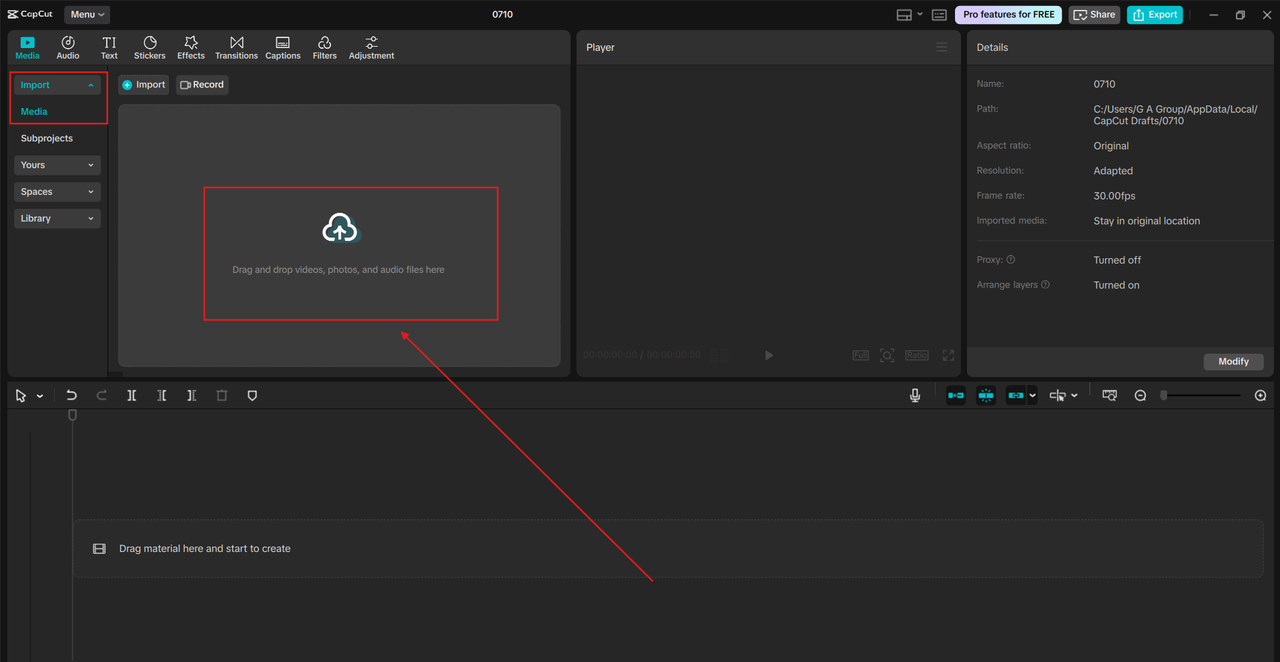
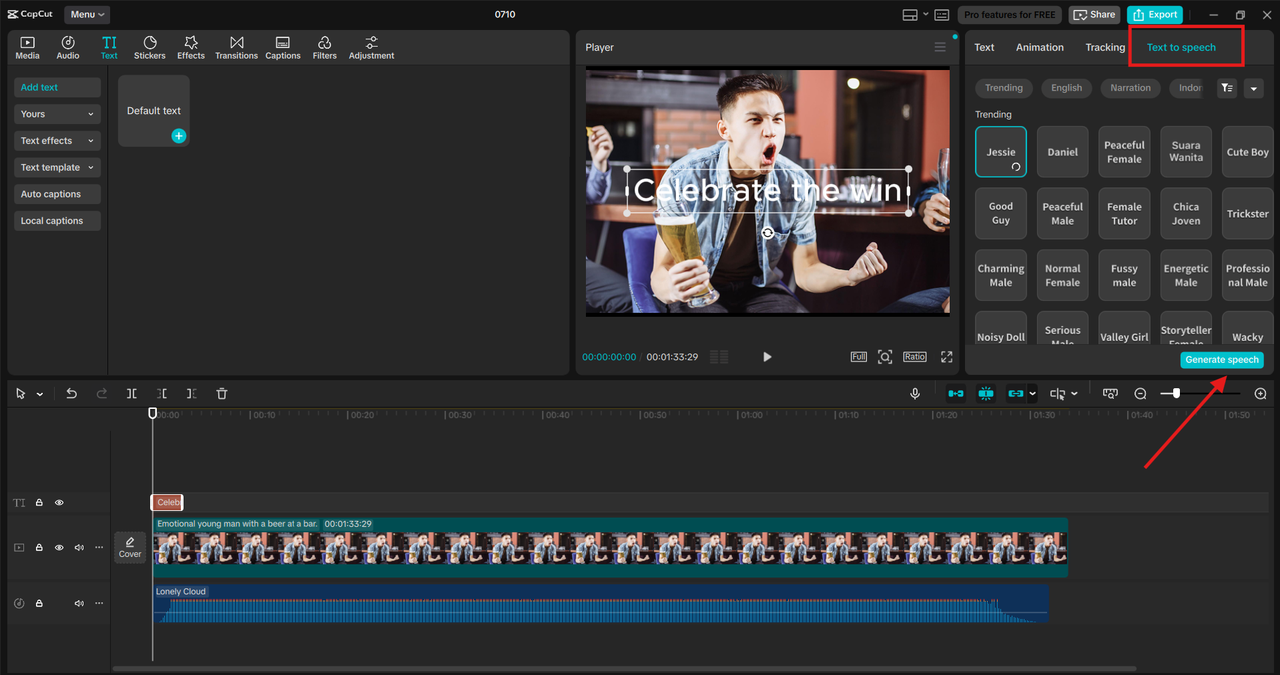
Now it’s time to bring those translated scripts to life using CapCut’s Text-to-Speech feature. Open CapCut Desktop Video Editor and import your video clip or project. Click “Text” > “Text to speech” from the top toolbar. Paste your translated script into the text box. From the Voice Options, choose the language (e.g., French, Arabic, Japanese), the voice style (male, female, deep, lively, etc.) Click “Generate speech”. CapCut will create a voiceover file and automatically add it to your timeline. Preview the voiceover and adjust pacing or pauses by editing the text. Some AI voices work better with specific sentence structures, so feel free to adapt your sentence structure accordingly. Try CapCut AI Video Upscaler to enhance the quality of your voiceover video.
Step 3: Sync and Polish Your Voiceover
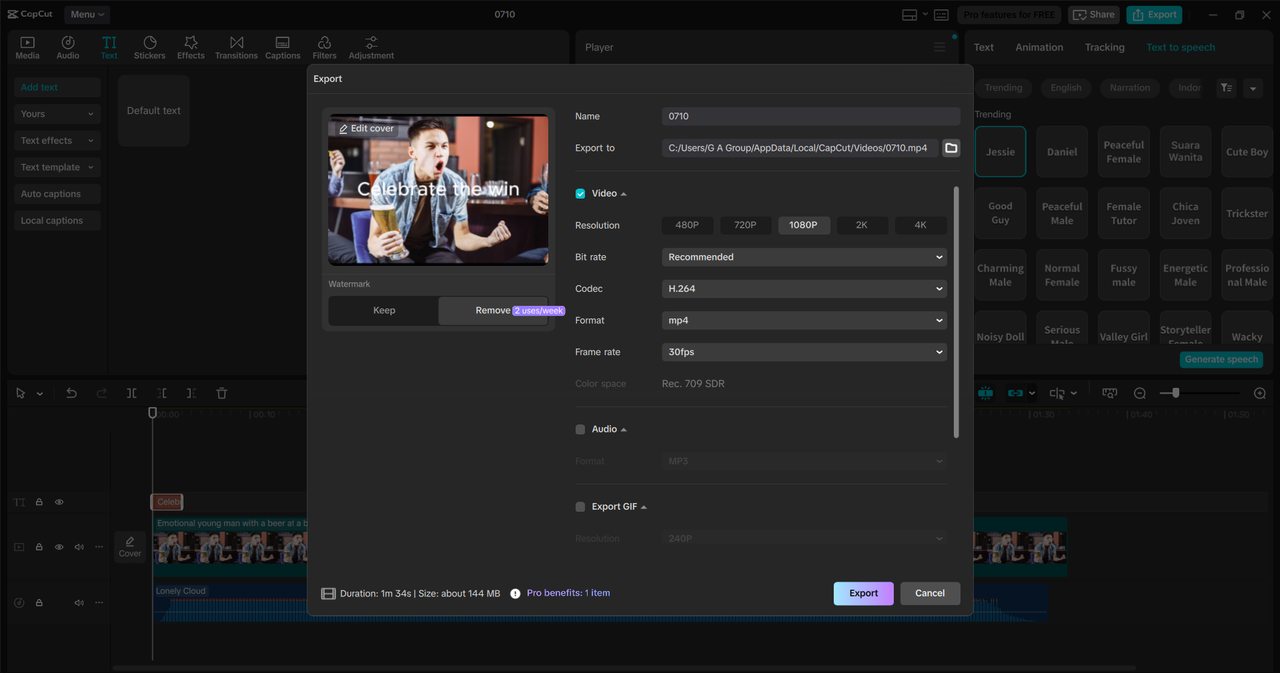
Once your multilingual voiceover is generated, you need to sync it with visuals and finalize your video. Drag the generated voice clip to match key scenes. Use the “Split” tool to trim the voiceover to exact moments. Add subtitles in the same language for clarity. Use background music, animations, and visual cues to enhance understanding even without sound.
Want to create multiple versions for different regions? Duplicate your project and swap the voiceover and subtitle files in each version. Now you have a French, Urdu, and Spanish version of the same video—each ready to go!
Smart Tips for Global Impact
Keep Cultural Context in Mind
Some words or phrases may not translate well. Use region-specific terms and avoid idioms that may not make sense in other cultures.
Test Voice Styles
Each language comes with a variety of voice options—professional, emotional, and casual. Select voices that align with your video’s tone and audience preferences.
Optimize for Platforms
If you’re posting to TikTok, Instagram Reels, or YouTube Shorts, consider how different regions use these platforms. You can tailor intros and CTAs for better performance in each market.
CapCut’s Key Features That Help You Go Multilingual
CapCut is more than just a video editor. Here are a few tools that make multilingual production smoother:
– Text-to-Speech in 30+ Languages: From Korean to Hindi to German, CapCut supports a wide range of languages.
– Auto Captions: Automatically create subtitles that match your voiceover—ideal for accessibility.
– Voice Changer: Transform voices for character roles or language-specific accents.
– AI Video Generator: Produce short clips automatically from text or ideas, and then localize them using multilingual voiceovers.
Looking for a quick start? Try out the AI Video Generator tool to create a short video, and then use the text-to-speech tool to add localized voiceovers.
Conclusion
Adding multilingual voiceovers with CapCut enables your message to reach a wider audience than ever before. Whether you’re an indie creator, educator, or digital marketer, language no longer needs to be a barrier. With just a few clicks, you can break boundaries and grow your global audience—all without hiring voice actors or editors.
CapCut makes this process not just possible, but easy, fast, and free. So why stop at one language? Ready to make your content multilingual and maximize your reach? Open CapCut and start generating voiceovers in languages your audience loves to hear.

