

An external drive can become unreadable even when the files are still present. Windows may show the device without a drive letter, report the file system as RAW, ask to format it, or fail to detect it at all. Those symptoms look similar in File Explorer, but their causes—and the safe response—are very different.
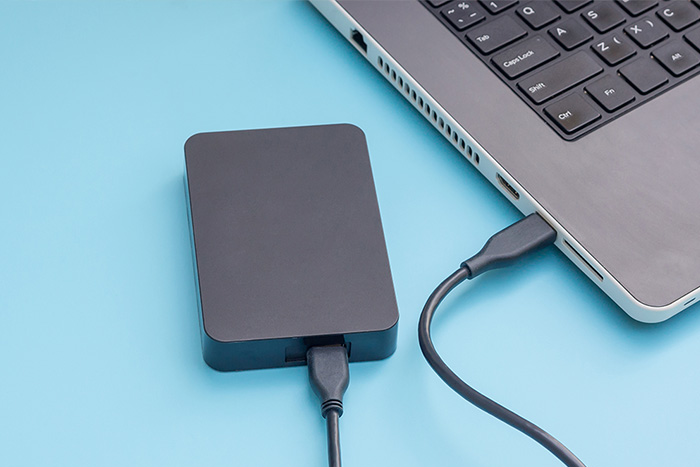
The key is to avoid treating every unreadable drive as a formatting problem. Start with low-risk checks, determine whether the fault is related to the connection, Windows, the file system, or the hardware, and protect important data before any action that writes to the disk.
| First rule: If the drive holds the only copy of important files, cancel format and initialization prompts. Do not create a new volume or save anything to the affected drive.
|
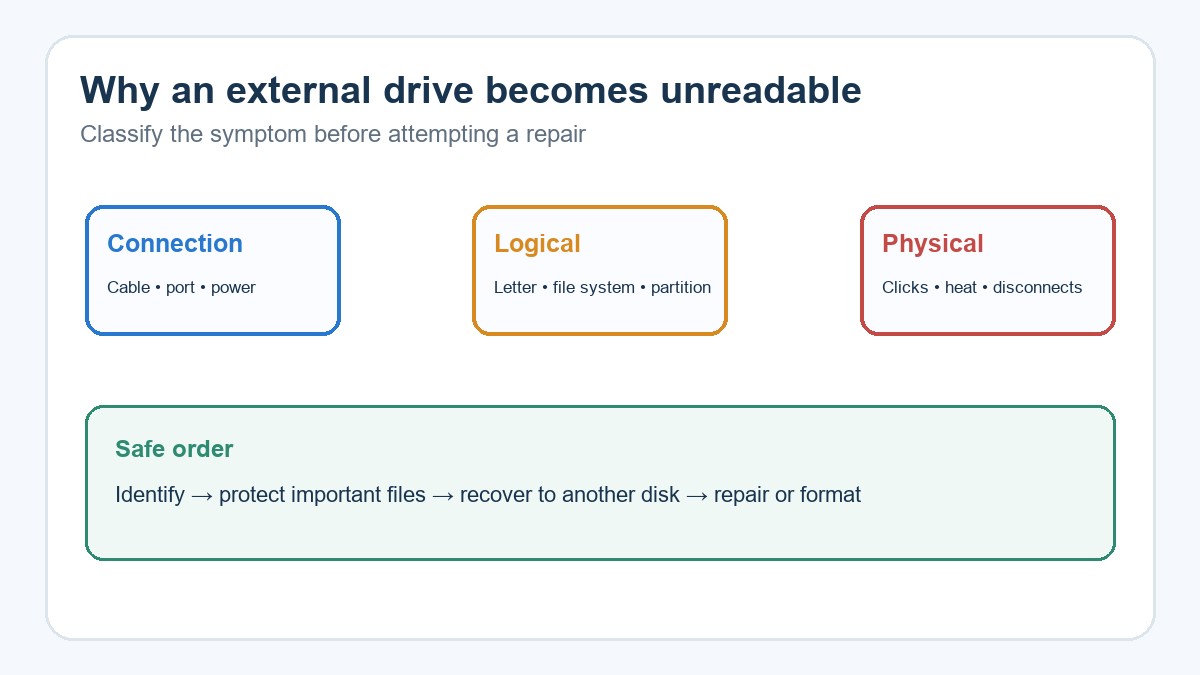
Figure 1. Classify the failure before choosing a repair. Original illustration created for this article.
1. An Unstable Cable, USB Port, or Power Supply
A damaged cable or weak USB connection is one of the most common reasons a drive appears and disappears. Portable hard drives draw power through USB, while larger desktop units often depend on a separate adapter. If power drops during a read or write, Windows may disconnect the device and the file system can later appear damaged.
Reconnect the drive directly to the computer, try a different port, and test a known-good cable with the same specification. Avoid unpowered hubs. If the drive starts working, copy the most important files immediately rather than assuming the problem is permanently solved.
2. A Missing or Conflicting Drive Letter
Windows can detect a healthy volume but omit it from File Explorer when no drive letter is assigned. A conflict with a mapped network drive can cause the same symptom. Open Disk Management, identify the external disk by capacity, and check whether its partition is marked Healthy but lacks a letter. Assigning an unused letter changes the mount point without formatting the data.
Be careful not to modify the small Recovery partition on the internal Windows disk. That partition serves a different purpose and should not be used for ordinary storage. If the system-disk layout itself needs attention, see this guide to moving a healthy Recovery partition in Windows 10 or 11.
3. File-System Corruption After Unsafe Removal or Power Loss
A file system records where files begin, end, and connect to directory entries. Removing a drive during activity, losing power, or interrupting a large transfer can damage that structure even when most file content remains on the disk. Windows may then label the volume RAW or display a message asking you to format it.
Do not format a RAW volume if you need its files. Formatting creates new file-system structures and may overwrite recovery information. Recover or image the disk first. File-system repair tools should be considered only after valuable data is protected and only when the hardware is stable.
4. A File System Windows Cannot Read
An external drive prepared on another operating system may be healthy but unreadable in Windows. APFS and HFS+ are common on macOS, while ext4 is common on Linux. Windows may see the physical disk in Disk Management without mounting its partitions in File Explorer.
Use the operating system that created the drive to copy the files, or use a trusted read-only workflow. Do not accept a Windows format prompt merely to make the device appear. After the data is safe, the disk can be reformatted to exFAT for broad compatibility or NTFS for Windows-focused use.
5. Partition-Table Damage or Accidental Deletion
The partition table tells the computer where each volume begins. A failed cloning operation, malware, an interrupted partition resize, or selecting the wrong disk in a management tool can damage this map. Disk Management may show the space as Unallocated even though file data still exists.
Do not create a new volume in that space. First scan or image the affected disk and save recovered files to a different device. Rebuilding partitions is more invasive than recovering files and should be attempted only with a verified backup or a sector-level image.
6. Windows Driver or System Instability
A USB-controller problem, storage driver error, or unstable Windows installation can prevent a healthy drive from mounting. Test the device on another computer. If it works there, update Windows, review optional driver updates, and reinstall the affected device through Device Manager before blaming the disk.
When drive failures appear alongside repeated Windows crashes, resolve the system-wide instability before running long scans. This overview of computer green-screen crash causes and proven solutions explains several causes that can affect storage access as well as overall reliability.
7. Encryption or Access-Permission Problems
An encrypted drive is not necessarily damaged. A BitLocker volume requires its password or recovery key, while drives managed by company security software may require a particular account or device. Repeatedly changing permissions or using unknown unlocking utilities can make diagnosis harder.
Confirm who encrypted the drive and locate the original key before making changes. If Windows can see the volume but reports Access Denied, test it with the authorized account and inspect its security settings only after confirming that the disk is physically stable.
8. Physical Media or Enclosure Failure
Mechanical hard drives can develop weak heads, motor faults, or unreadable sectors. Solid-state drives can fail through controller or flash-memory problems. Sometimes the disk itself is healthy but the USB-to-SATA bridge inside the enclosure has failed.
| Stop immediately if the drive: clicks, scrapes, repeatedly spins up and down, becomes unusually hot, smells burnt, or disconnects during every read attempt. Repeated scans and power cycles can make a physical failure worse. |
Testing a removable enclosure with a compatible adapter may help, but do not open a sealed hard-drive mechanism. For unique business files, family photos, or other irreplaceable data, a professional recovery laboratory is safer than repeated DIY attempts.
What to Do Before Repairing or Formatting
- Record the symptoms and what happened immediately before the failure.
- Test a different cable, port, power source, and computer without writing to the drive.
- Use Disk Management to identify whether the volume is Healthy, RAW, Offline, or Unallocated.
- Copy accessible files first; if the volume cannot be opened, recover files to another healthy disk.
- Verify the recovered files before repairing, reformatting, or replacing the original device.
A data recovery application such as Drecov can scan a logically damaged external drive and copy recoverable files to another location. Install the software on the computer or a healthy disk—not on the affected drive—and never save recovered files back to their source.
The Same Data-Protection Rule Applies to Other Devices
The central recovery principle is not limited to external hard drives: stop writing to the source and recover to a separate location. For example, a damaged Android phone may hold photos that are not visible through normal access. This guide explains how to recover pictures safely from a broken Android phone while reducing the risk of further data loss.
Conclusion
An unreadable external drive is a symptom, not a diagnosis. A cable problem, missing drive letter, unsupported file system, damaged partition map, Windows instability, encryption, and physical failure can all produce a similar result. The safest response is to classify what Windows can still see and avoid writing to the disk until important files are protected.
Start with connection tests and Disk Management, then recover data before using repair tools or formatting. If the drive shows physical warning signs or contains the only copy of valuable files, stop DIY troubleshooting and seek professional assistance.

