

Key Takeaways
- Choose equipment based on your daily workload and software needs.
- Balance performance, comfort, connectivity, security, and flexibility.
- Use ergonomic positioning for the screen, keyboard, lighting, and chair.
- Make sure your internet connection can support regular work and meetings.
- Choose devices and accessories that are easy to move between locations.
- Keep important files protected with secure connections and reliable backups.
- Organize cables and equipment to reduce clutter and interruptions.
- Focus on a setup that supports consistent, comfortable, and productive work.
A productive hybrid workstation is not simply a laptop placed on a desk. It is a dependable system that lets you concentrate at home, collaborate in the office, and move between locations without losing time to cables, dead batteries, missing files, or uncomfortable equipment. Start with the tools you already use, then compare practical options such as Lenovo products based on the work you actually need to complete. The goal is not to buy the most expensive computer or fill every inch of the desk with accessories. A useful setup makes routine tasks easier. It should open files quickly, support clear meetings, protect sensitive information, and remain comfortable through a full workday.
Why The Setup Matters
Hybrid work exposes weak points quickly. A poor setup can lead to eye strain, clutter, slow file access, unreliable video calls, and repeated setup work every time you change locations. A stronger workstation supports two different modes: deep, uninterrupted work and fast collaboration. Build around your daily actions, not a list of impressive specifications. If you spend hours reviewing documents, joining calls, and switching between browser-based tools, usability matters more than extreme graphics performance.
Start With The Workload
Before choosing equipment, write down the applications and tasks that take up most of your week. Check each major program’s requirements for processor capability, memory, graphics, storage, and operating system compatibility. Software needs are more useful than brand names when deciding what to buy.
Simple Workload Categories
- Everyday work:Email, documents, browser tabs, messaging, and video meetings.
- Power-user work:Large spreadsheets, development tools, research platforms, databases, and content creation.
- Specialized work:CAD, animation, simulations, engineering software, video production, and local AI workloads.
Choose The Right Computer
A laptop is usually the best foundation for people who regularly move between home, office, and client sites. A desktop can make more sense when the work stays in one place and requires sustained performance, easier repairs, or future upgrades. Mobile workstations sit between those choices, offering portability with more capacity for demanding work. Memory helps when many applications, browser tabs, or large files are open at once. Solid-state storage improves startup, loading, and file access. Dedicated graphics matter most for visual design, technical modeling, editing, gaming, and some local AI tasks. Also, check the available ports, charging method, wireless reliability, and whether memory or storage can be upgraded later.
Questions To Ask Before Buying
- Will it run every required application?
- Can it manage normal multitasking without slowing down?
- Does it connect to displays, storage, and accessories easily?
- Can important components be repaired or upgraded?
- Will it remain practical for the next several years?
Build A Clear Display Setup
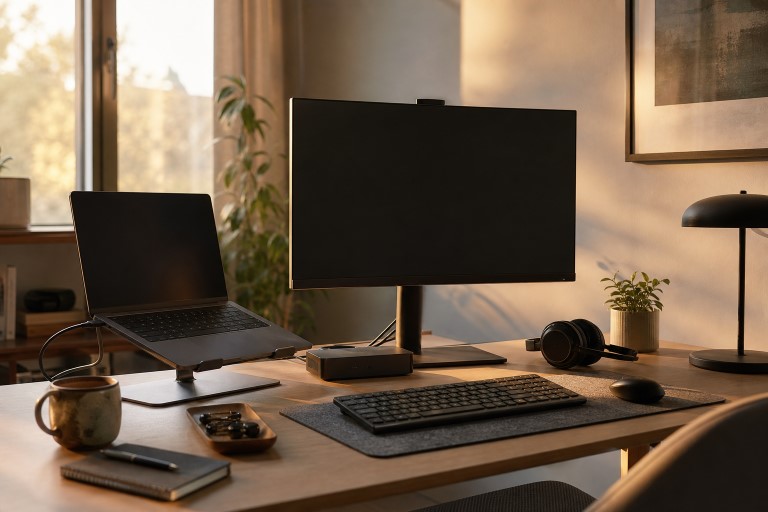
More screens are not automatically better. One large, sharp display may help a writer, editor, or programmer stay focused with fewer distractions. Two displays can help an analyst keep communication or reference material visible while working on reports or dashboards. Place the primary screen directly in front of you, adjust text size for comfortable reading, and reduce glare from windows or overhead lights. Choose a display for the work, not just its refresh rate. Resolution, readable text, brightness, color needs, and connection options usually matter more for professional tasks. Keep the screen far enough away to read comfortably without leaning forward.
Make Switching Locations Easy
A docking station or connectivity hub can turn one laptop connection into power, display, network, keyboard, mouse, and audio access. Keep duplicate chargers and essential adapters at your main locations when possible. Consistent peripherals also reduce friction. Using the same keyboard layout, mouse, headset, and camera setup helps each workspace feel familiar.
Five-Minute Location Change Checklist
- Save open files and confirm they are synced.
- Pack the correct charger, dock adapter, and headset.
- Check the time and location of the next meeting.
- Lock the device before transport.
- Use a secure bag that protects the computer and accessories.
Improve Comfort And Focus
Comfort is a performance feature. Set chair height so your feet are supported and your shoulders can stay relaxed. Position the keyboard and mouse where your elbows remain close to your body. The top of the display should sit near eye level for many users, although the right arrangement depends on the person and their equipment. The basic workstation design goals from OSHA are a useful reminder to adjust the chair, monitor, keyboard, and lighting together rather than treating them as separate problems. Take brief movement breaks during long sessions, especially when meetings keep you seated for hours. Use soft, indirect lighting to limit screen glare and improve camera visibility. A headset or external microphone can also make calls clearer when household or office noise is unavoidable.
Protect Work And Devices
Security should travel with the workstation. Enable automatic updates, use unique passwords stored in a password manager, and turn on multi-factor authentication. Use full-disk encryption where available, separate work and personal accounts, and maintain regular backups through an approved method. Avoid handling sensitive work on public networks unless a secure connection is in place. For a simple framework, the management of cybersecurity risk should include knowing what needs protection, reducing avoidable exposure, and preparing for recovery if something goes wrong. Lock the screen whenever you step away, review app permissions, and treat unexpected attachments or login requests with caution.
Control Costs And Upgrades
Buy for real needs, with reasonable room for growth. Paying for unused performance can waste budget that would be better spent on a reliable dock, a comfortable chair, a quality display, or better input devices to improve the daily experience. Compare the price of adding storage or memory with replacing the entire system. Also consider warranty coverage, repair access, operating-system support, and the cost of downtime.
Use A Simple Setup Checklist
Core Equipment
- A computer matched to the main workload
- One or more suitable displays
- A keyboard, pointing device, camera, and microphone
- A docking station or dependable connectivity hub
- A supportive chair and a correctly sized desk
Final Review
- Test the setup through a normal workday.
- Identify the biggest delay, distraction, or discomfort.
- Fix the least expensive high-impact problem first.
- Remove equipment that creates clutter without adding value.
- Review the workstation every few months as work changes.
Conclusion
A productive hybrid workstation begins with the workload and improves through practical testing. Balance performance, comfort, connectivity, security, and flexibility so that moving between locations feels routine rather than disruptive. Consider the tasks you perform most often, the software and devices you rely on, the quality of your internet connection, and how easily your setup can be packed or adjusted when working elsewhere. Ergonomic details such as screen height, keyboard position, lighting, and seating can also affect comfort during longer work sessions. Reliable backups, secure connections, and organized cables help reduce avoidable interruptions. The best setup is not necessarily the most expensive or elaborate. It is the one that fits your daily workflow, supports collaboration, protects important information, and helps you complete important work consistently, securely, and comfortably wherever your workday takes you.

